


Tracking website performance with Google Analytics 4 is essential for WordPress site owners today.
Learning how to install Google Analytics in WordPress helps you understand visitor behavior effectively. This WordPress analytics setup guide makes data-driven decisions easier for your online business growth.
According to research, Google Analytics powers 6,846,080 companies and 43.35% of top-ranking websites worldwide.
GA4 tracking code provides powerful insights about traffic sources, user engagement, and conversion metrics.
This comprehensive WordPress Google Analytics plugin guide covers three simple installation methods for beginners.
You’ll discover how to setup Google Analytics 4 on WordPress using multiple proven approaches.
Whether using code, plugins, or Google Tag Manager, you’ll master WordPress performance tracking today. Start your GA4 property configuration journey and optimize your website for better results.
Key Takeaways
- Install GA4 using three proven methods
- Track WordPress visitor behavior and engagement
- Configure Measurement ID for accurate tracking
- Verify GA4 installation through real-time reports
- Fix common WordPress analytics setup errors
- Monitor traffic sources and user demographics
- Optimize content using GA4 data insights
What Is Google Analytics?
Google Analytics is a powerful website tracking WordPress tool for analyzing visitor behavior comprehensively.
It helps website owners understand traffic patterns and optimize their WordPress visitor tracking strategy. This free platform is essential for monitoring page views, traffic sources, and user engagement.
GA4 measurement ID integration reveals crucial data about how visitors interact with your content.
WordPress analytics dashboard shows real-time visitor activity, helping you make informed business decisions. The platform tracks user journeys from first visit to conversion across multiple devices.
Google Analytics plays a vital role in search engine optimization and digital marketing success. It assists businesses in monitoring marketing campaigns and measuring their WordPress GA4 integration performance.
Users can optimize content strategies and enhance website visibility using data-driven insights effectively.
Modern GA4 features include enhanced e-commerce tracking, cross-platform analytics, and predictive metrics capabilities.
Understanding these analytics helps create better user experiences and increase website conversion rates.
Why is Google Analytics Important?
When starting a blog, increasing traffic and engagement is a top priority. Google Analytics helps track visitors and understand their behavior for better decision-making. Here are a few reasons why Google Analytics is important:
- Monitor Site Growth: GA4 dashboard displays visitor trends, helping identify peak traffic periods effectively. Track which content resonates most with your target audience consistently.
- Discover Traffic Sources: Analytics reveals whether visitors arrive through search, social, or direct channels. This data guides where to focus your marketing efforts strategically.
- Improve User Experience: Bounce rates and session duration indicate content quality and site usability. Use these insights to enhance navigation and page load speeds.
- Boost Revenue Opportunities: E-commerce tracking shows product performance and customer purchase patterns clearly. Identify bestsellers and optimize your sales funnel for maximum conversions.
- Validate Content Strategy: Page analytics confirm which topics generate engagement and social shares. Create more content around proven subjects your audience actively seeks.
Recommended Blogs for You:
How to Clear WordPress Cache for Better Site Speed
What Is WordPress Hosting?: A Complete Guide for Beginners in 2025
How to Fix WordPress Error Establishing Database Connection in 2025(Step-by-Step Guide)
How to Duplicate a Page in WordPress: An Easy Guide
How to Install Google Analytics in WordPress: Step-by-Step
Signing Up for Google Analytics
Setting up your Google Analytics WordPress 2025 account requires following these verified steps carefully. Create your GA4 account setup to begin tracking valuable website data immediately.
Go to https://analytics.google.com and click Start Measuring.

Enter an account name
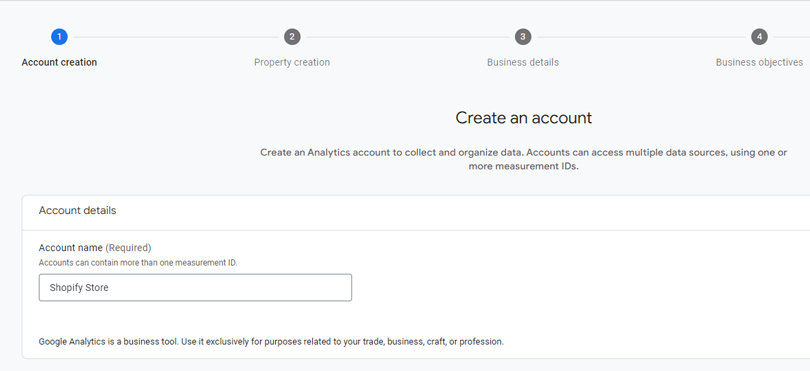
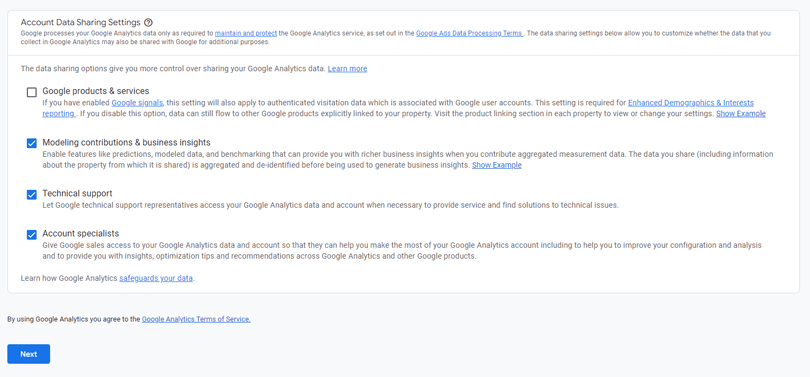
adjust data sharing settings, and Enter an account name.
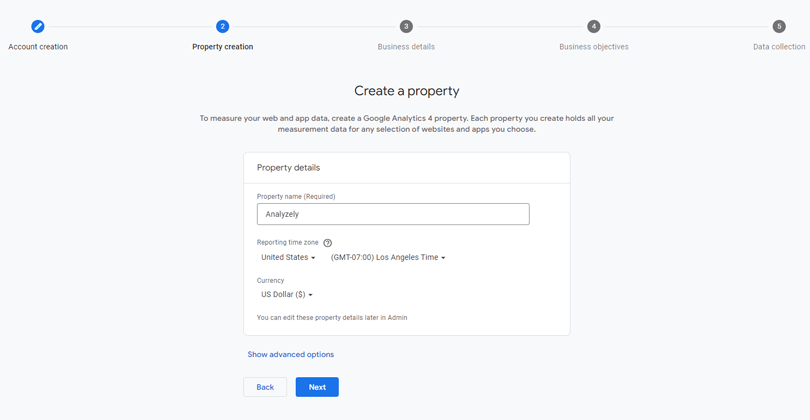
Enter your website name, time zone, and currency, then click Next.
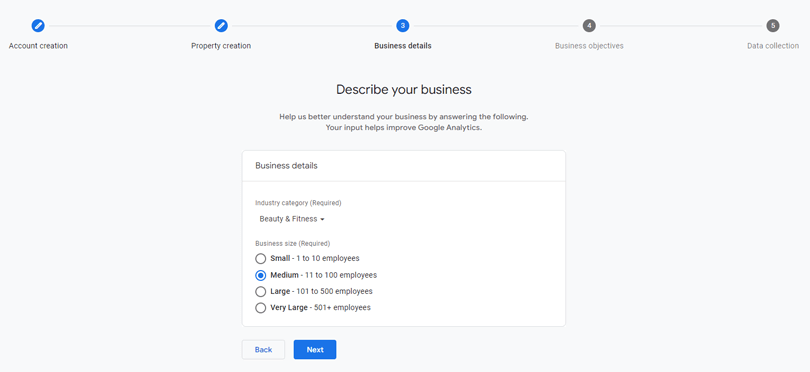
Select your business category and size, then click Next.
Choose a business objective and click Create.
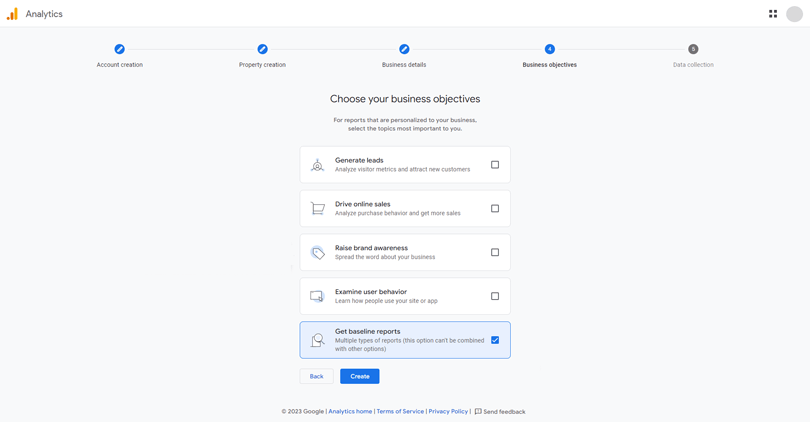
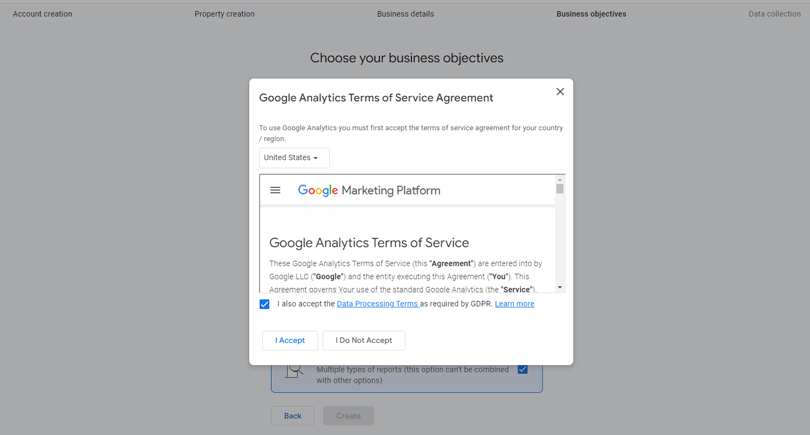
Accept the Terms of Service and GDPR terms, then click I Accept.
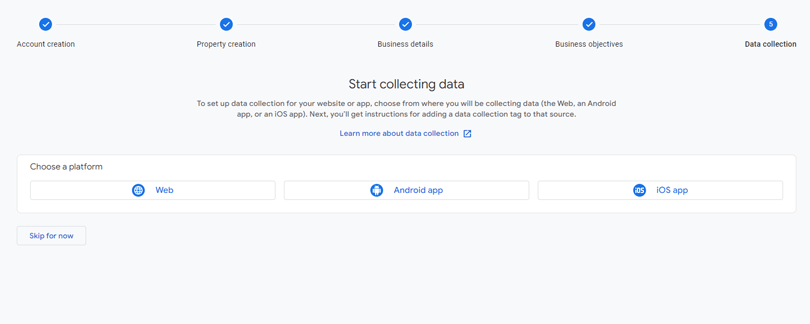
Choose “Web” as the data collection platform.
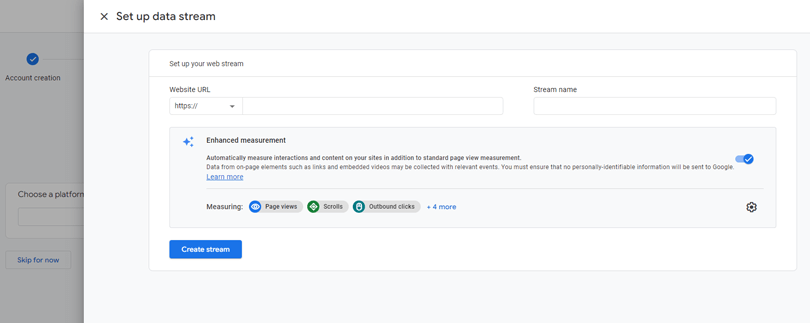
Enter your website URL (without https:// or http://) and name the data stream. Click Create Stream to generate your data stream.
Your Google Analytics account has been successfully created and is now set up to start collecting data from your store.
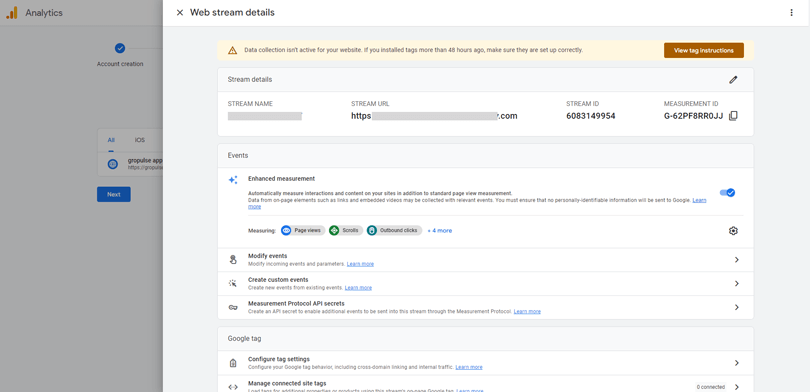
Method 1: Add Google Tag Code to Header.php
Installing GA4 WordPress tracking code manually requires careful editing of your theme files directly. This method gives you complete control over your Google Analytics header code WordPress placement.
Access your WordPress admin panel and navigate to Appearance in the left sidebar.
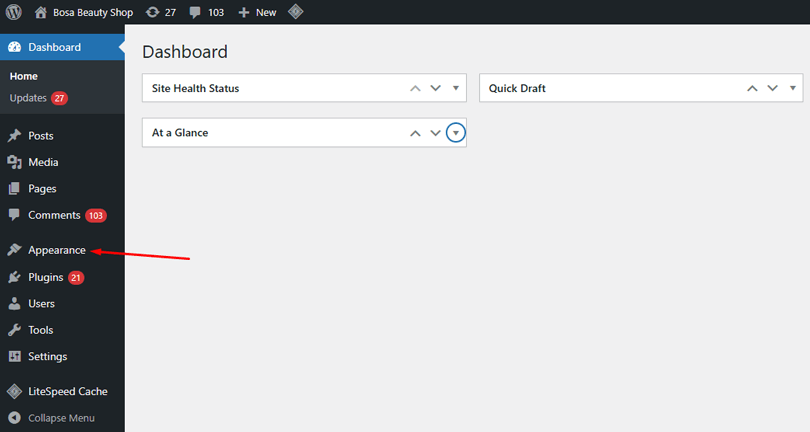
Select Theme File Editor from the dropdown menu options available.

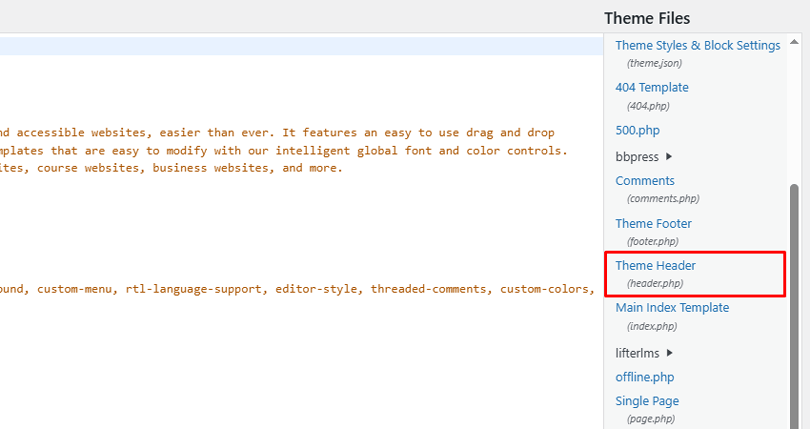
Locate header.php from the theme files list on the right side panel.
Return to Google Analytics and copy your complete GA4 tracking script provided there.
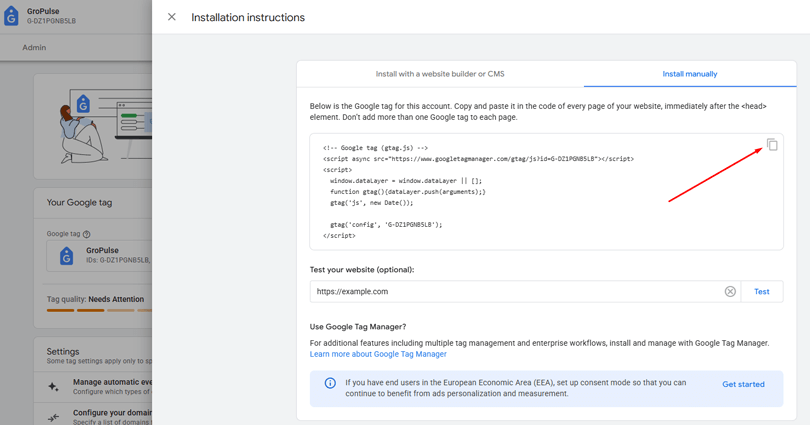
Find the closing </head> tag within the header.php file code structure carefully. Paste the tracking code directly above the </head> tag in header.php file.
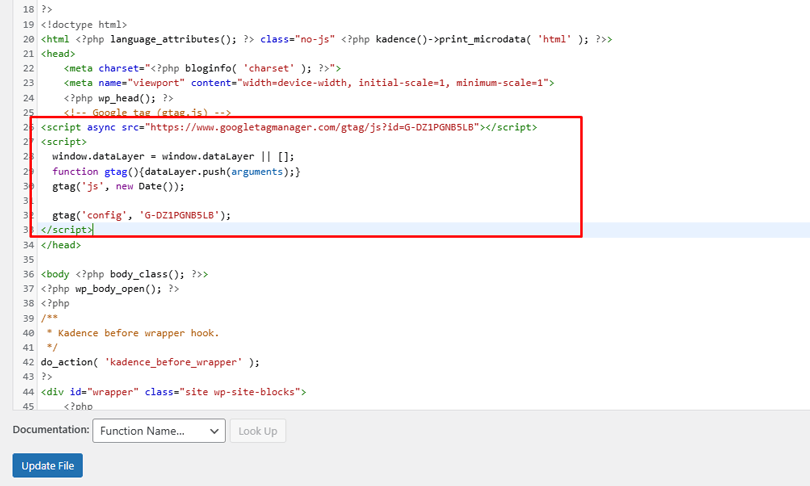
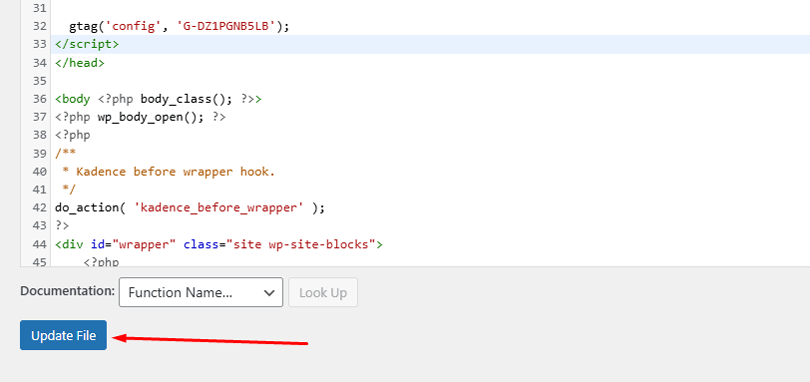
Click “Update File” to save changes and activate your tracking code immediately.
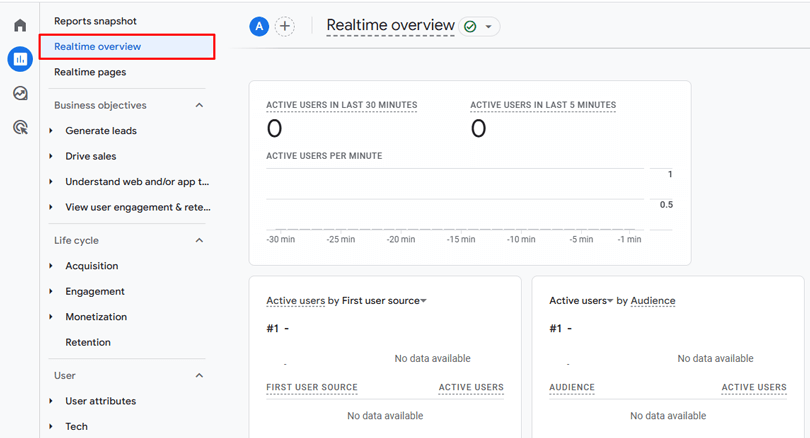
Test installation using GA4 real-time reports to confirm proper code implementation success.
Wait 24-48 hours for Google Analytics to begin collecting visitor data accurately.
Method 2: Install the Google Analytics WordPress Plugin
You can easily add Google Analytics to WordPress using a plugin. Using HT Easy GA4 Google Analytics plugin simplifies the entire setup process for beginners. This WordPress plugin GA4 tracking method requires no technical coding knowledge at all.
Navigate to Plugins menu in your WordPress dashboard and click Add New option.
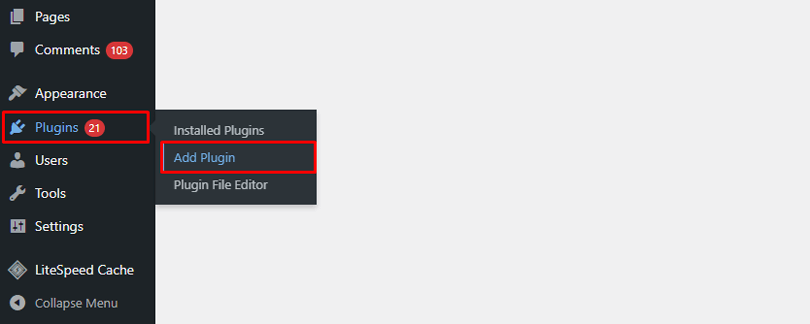
Type “HT Easy GA4” in the search box and press Enter to find it.
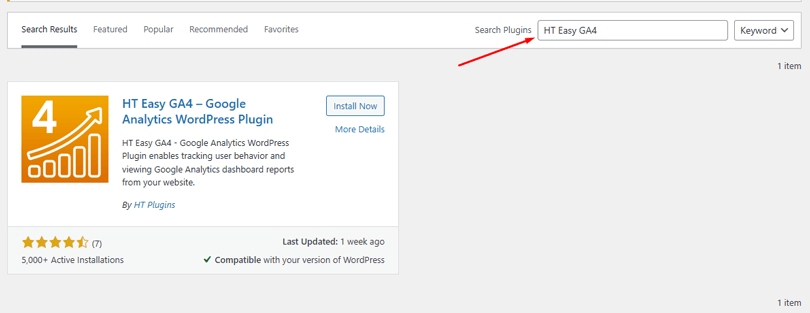
Click Install Now button next to HT Easy GA4 – Google Analytics plugin listing.

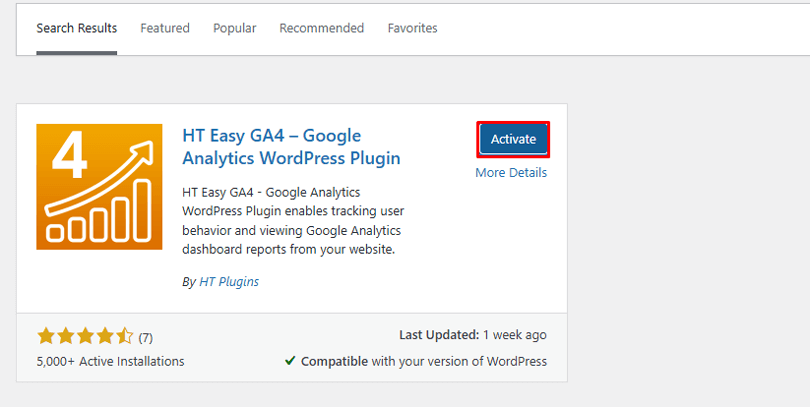
Press Activate after installation completes to enable the plugin on your website.
Access HT Easy GA4 from your WordPress admin menu after successful plugin activation.
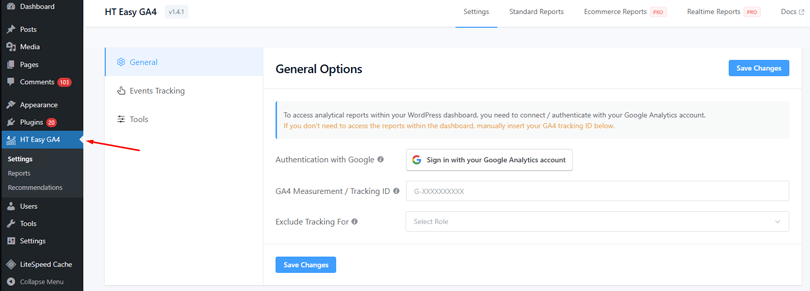
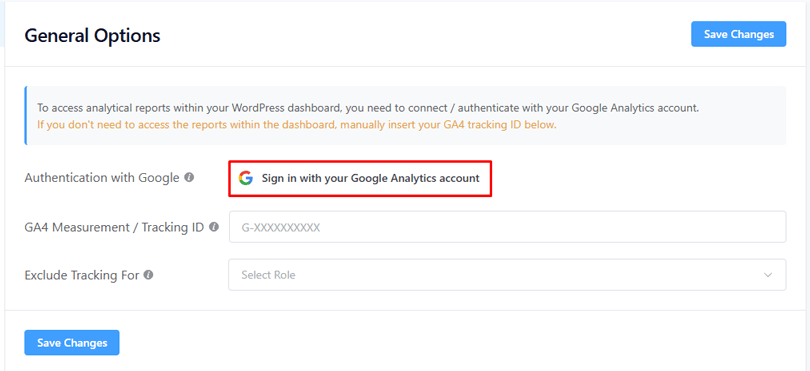
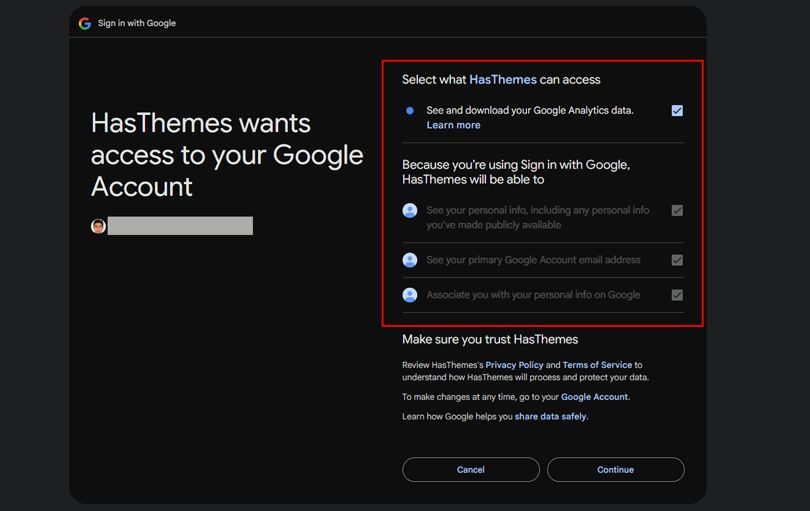
Click “Sign in with Google” button for the recommended setup method (not direct ID).
Grant necessary permissions when Google requests access to your Analytics account data.
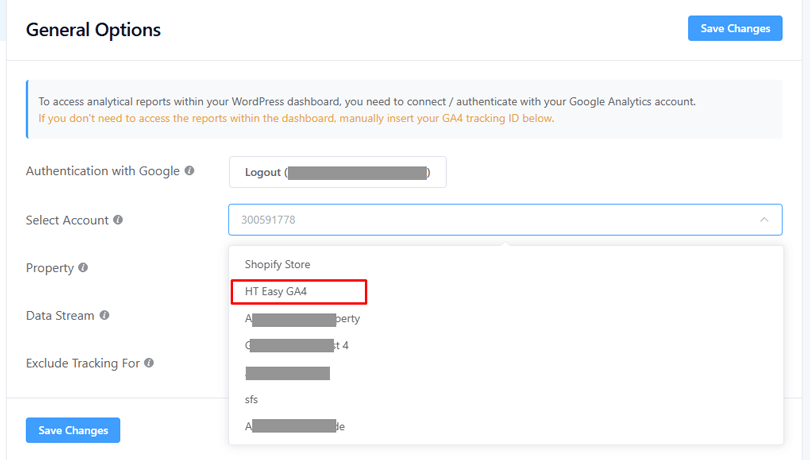
Select your Google Analytics account from the dropdown menu that appears next.
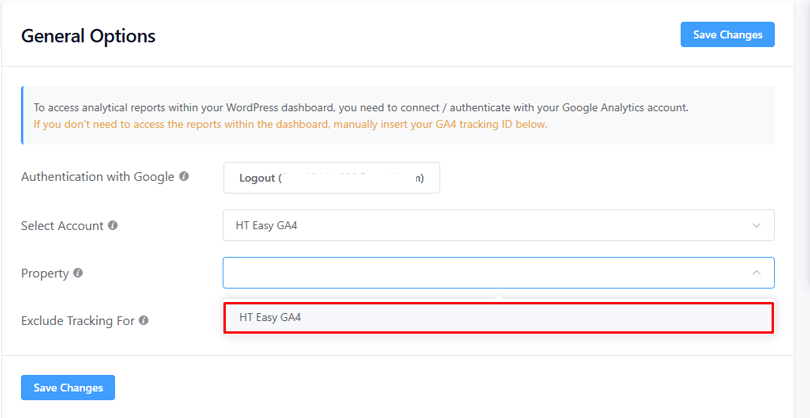
Choose your GA4 account property
Choose Measurement ID from available options listed.
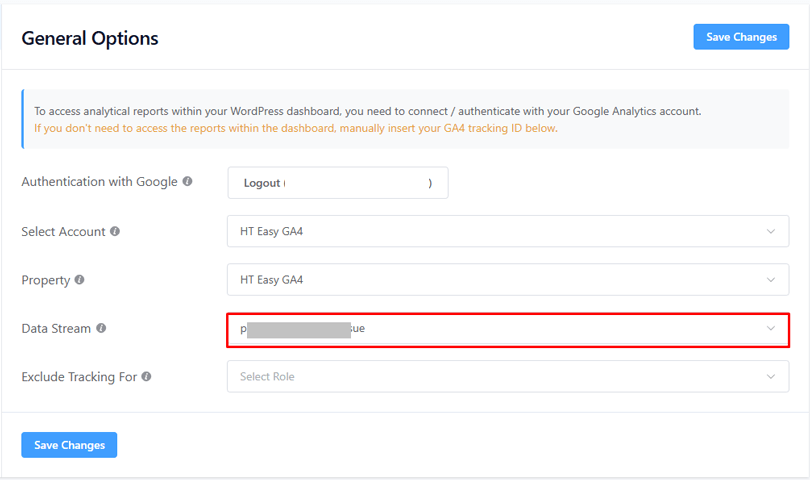
Click Save Settings to complete the WordPress GA4 plugin setup process successfully.
Common Issues with WordPress Google Analytics 4 (GA4) Integration
When integrating Google Analytics 4 (GA4) with WordPress, you may encounter several issues. Here are some common problems to watch out for:
- Missing Real-Time Data: GA4 requires 24-48 hours to display initial visitor data properly. Check your Measurement ID accuracy if data doesn’t appear after waiting.
- Duplicate Tracking Code: Multiple GA4 installations cause inflated visitor numbers and skewed analytics reports. Remove old Universal Analytics codes and verify single installation only.
- Incorrect Measurement ID: Ensure your ID starts with “G-” for valid GA4 property tracking. Universal Analytics IDs starting with “UA-” won’t work in GA4 setup.
- Plugin Conflicts: Some SEO and caching plugins interfere with proper analytics code loading. Disable plugins temporarily to identify conflicts affecting your tracking accuracy
- Ad Blocker Interference: Browser extensions block GA4 scripts from loading on your test visits. Use incognito mode without extensions to verify proper installation status.
Frequently Asked Questions
Can I install Google Analytics on WordPress without editing the code?
Yes, you can install Google Analytics on WordPress without editing code by using plugins like HT Easy GA4. These plugins allow you to connect your site to Google Analytics easily by entering your tracking ID. This method is beginner-friendly and ensures accurate data tracking.
How do I verify if Google Analytics is working on my WordPress site?
To verify Google Analytics on WordPress, check the real-time report in your Google Analytics dashboard. You can also inspect your site’s source code for the tracking ID.
How long does it take for Google Analytics to start tracking data?
Google Analytics usually starts tracking data within 24 to 48 hours after setup. However, the real-time report may show visitor activity instantly. Check your tracking code placement, plugin settings, or Google Analytics property configuration if data doesn’t appear.
Can I use Google Analytics with multiple WordPress websites?
Yes, you can track multiple WordPress websites with a single Google Analytics account. Each website should have a unique property and tracking ID. You can manage all sites from one Google Analytics dashboard and analyze performance separately for better insights.
Do I need coding knowledge to add GA4 to WordPress?
No coding required when using WordPress analytics plugins like HT Easy GA4. Manual installation requires basic HTML knowledge to edit header.php files.
Will Google Analytics slow down my WordPress website speed?
GA4 uses asynchronous loading that doesn’t impact page load times significantly. The tracking script loads after your main content displays to visitors.
Conclusion
Installing Google Analytics 4 on WordPress unlocks powerful insights for growing your online presence. The two methods covered provide options suitable for every skill level and requirement.
Choose plugins like HT Easy GA4 for the simplest WordPress analytics integration experience available. Technical users might prefer manual code installation for complete control over tracking implementation.
Your GA4 property setup enables data-driven decisions that improve content strategy and user experience. Monitor visitor behavior, traffic sources, and conversion paths to optimize your website performance.
Remember to verify your installation works correctly using real-time reports and troubleshooting steps. Regular analytics monitoring reveals opportunities to enhance your WordPress site’s effectiveness and reach.
Start implementing these GA4 installation steps today to transform data into actionable growth strategies. Your WordPress website deserves professional analytics tracking for achieving long-term success online.