

Your website’s header is the first thing 100% of your visitors see. Within milliseconds, it sets the tone for their entire experience and determines whether they stay or bounce. Yet most website owners treat their headers as afterthoughts, leaving countless conversion opportunities on the table.
Here’s the reality: mobile widgets boost conversion rates by 3.1% compared to desktop-only implementations. That may sound modest, but for an ecommerce store with 10,000 monthly visitors, this single optimization could mean 300+ additional conversions per month.
The good news? Adding functional widgets to your header isn’t complicated anymore. Tools like Elementor and HT Mega have made it as simple as drag-and-drop, removing the need for manual coding or complex theme edits.
Whether you want to add a search bar, a “Get Quote” button, social icons, or a cart widget, this guide will walk you through every method, from beginner-friendly WordPress approaches to advanced Elementor solutions.
By the end of this guide, you’ll know exactly how to add widgets to your website header from a basic banner into a conversion-generating powerhouse.
Key Takeaways
- Your header is prime real estate, optimize it with widgets to boost conversions by 3.1% on mobile
- Elementor and HT Mega make header widgets drag-and-drop simple without coding
- Sticky headers keep your widgets visible while scrolling, improving user engagement
- Design matters: avoid cluttered headers and always test on mobile devices
- Advanced widgets like search bars, CTAs, and notifications drive immediate action from visitors
What Are Header Widgets and Why Do You Need Them?
A header widget is any functional element or block placed in your website’s header area—the space above your main content and navigation menu. Unlike static text or images, widgets are interactive components that serve a specific purpose and encourage user action.
Think of your header as digital real estate. It’s the only area on your site that appears on virtually every page, visible without scrolling. This “above-the-fold” positioning makes it the highest-impact area for conversion-focused elements.
The Big 4 Essential Header Widgets
1. Search Bar Widget: Allows visitors to instantly search your content or products. Especially critical for large websites, blogs, and ecommerce stores where users need fast access to specific information. A search widget in the header reduces bounce rates by eliminating friction.
2. Call-to-Action (CTA) Button: The most direct path to conversions. Phrases like “Book a Demo,” “Get Started,” “Schedule a Call,” or “Sign Up” in your header capture high-intent visitors at their most attentive moment. Research shows that personalized CTAs convert 202% better than generic ones.
3. Social Icons Widget: Display clickable links to your social media profiles (Facebook, LinkedIn, Twitter, Instagram, etc.). Social proof builds trust and provides alternate pathways for engagement beyond your website content.
4. Shopping Cart or Account Widget: For ecommerce sites, a cart widget showing item count and quick access is essential. An account login widget is equally important for membership or SaaS platforms, reducing friction for returning users.
Additional advanced widgets worth considering include notification widgets (for flash sales or announcements), event registrations, contact forms, and weather/weather-related content for specialized niches.
Why These Widgets Are Important in Your Header
Adding widgets to your website header is an excellent way to:
- Improve website navigation: With widgets like navigation menus and search bars, visitors can quickly find what they’re looking for.
- Enhance user experience: Customizing your header with widgets ensures that essential elements are easily accessible, improving your site’s usability.
- Increase user engagement: Widgets such as social media buttons, contact forms, or buttons for promotions encourage users to interact with your site more.
- Boost branding: By adding a logo widget or custom branding elements, your header can reflect your unique identity and business.
How to Select the Right Widgets for Your Website
To decide which widgets are most appropriate for your website, consider the following factors:
- Website Goals: If your goal is to drive sales, you may want to add a CTA button or product search bar. For content-driven sites, a search bar and navigation widget are essential.
- Website Type: eCommerce websites benefit from widgets like product search, cart icons, and account logins, while blogs may focus more on navigation and social media icons.
- Design Consistency: Ensure that the widgets you choose complement your website’s overall design and branding. Avoid cluttering the header with too many elements that could distract users from key content.
How to Add Widgets to Your Website Header: 3 Methods
Method 1: Using the WordPress Customizer (The Standard Way)
The WordPress Theme Customizer is the built-in option available in most WordPress themes. This is ideal if your theme supports header widget areas but you’re not using page builders like Elementor.
Step 1: Access the Theme Customizer
- Log into your WordPress dashboard.
- Navigate to Appearance > Customize.
- Look for Header or Header Settings in the left sidebar (exact naming varies by theme).
Step 2: Locate Widget Areas
- Some themes display “Header Widget Area” or “Top Bar Widget Area” options.
- If you see these, click to expand the options.
Step 3: Add Widgets
- Navigate to Appearance > Widgets.
- Find your header widget area in the list (e.g., “Header Widget Area” or “Top Bar Widgets”).
- Click Add a Block or Add Widget.
- Select the widget type you want (Search, Custom HTML, Text, etc.).
- Configure your widget settings.
Step 4: Preview and Publish
- Use the preview pane on the right to see changes in real-time
- Once satisfied, click Publish to save changes
Limitations of This Method:
- Not all themes support header widget areas
- Customization options are limited to what your theme allows
- Styling options are restricted
- You may need multiple widgets and limited positioning flexibility
Method 2: Using the Elementor Theme Builder (The Visual Way)
Elementor’s Theme Builder is a game-changer for header customization. It gives you complete visual control without writing a single line of code.
Step 1: Install and Activate Elementor (If Not Already Done)
- Go to Plugins > Add New in your WordPress dashboard.
- Search for “Elementor”.
- Click Install Now, then Activate.
- For advanced features, consider upgrading to Elementor Pro
Step 2: Access the Theme Builder
- Once Elementor is active, you’ll see Elementor in the left sidebar.
- Click Elementor > Templates.
- Click Theme Builder tab.
Step 3: Create a New Header Template
- Click the + Create button.
- Select Header as the template type.
- Name your header template (e.g., “Main Header”).
- Click Create Header.
Step 4: Add Widgets to Your Header The Elementor editor opens. Now you can drag and drop any widget into your header:
Adding a Search Widget:
- On the left panel, find the Search Form widget.
- Drag it into your header where you want it positioned.
- Customize the placeholder text, button text, and styling.
Adding a CTA Button:
- Find the Button widget.
- Drag it into the header.
- Edit the button text (e.g., “Book a Demo”)
- Set the link destination.
- Customize colors, size, and hover effects.
Adding Social Icons:
- Use the Icon List or Social Icons widget
- Add your social media profile links
- Adjust icon size and spacing
Step 5: Set Display Conditions
- On the right panel, go to Display Conditions.
- Choose where this header appears (all pages, specific pages, entire site, etc.).
- This prevents header conflicts if you want different headers on different sections.
Step 6: Publish Your Header
- Click Publish to save your custom header.
- The header will now appear on all selected pages.
Pro Tip: Use the Advanced Sticky Module in Elementor (or HT Mega’s sticky settings) to keep your header fixed at the top as users scroll. Sticky headers increase engagement because your CTA buttons remain accessible.
Method 3: Leveraging HT Mega for Advanced Headers (The Pro Way)
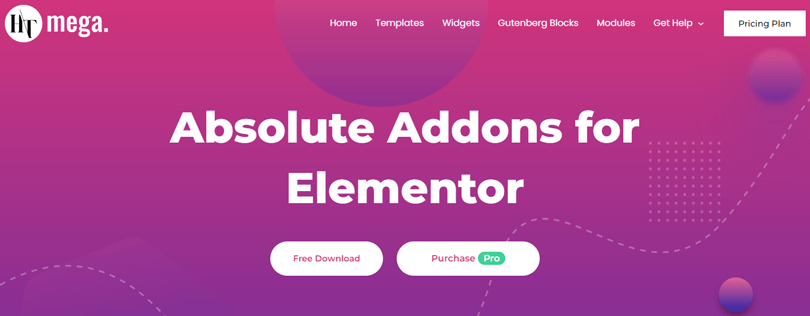
HT Mega is a powerful Elementor addon that provides advanced widgets and modules, including a dedicated Header/Footer Builder with pre-built templates and enhanced functionality.
Step 1: Install HT Mega
- Go to Plugins > Add New
- Search for “HT Mega”
- Install and activate the plugin
- Navigate to HT Mega > Settings to configure basic options
Step 2: Access the Header/Footer Builder Widger
- Go to HT Mega > Modules
- Locate and enable Header/Footer Builder (ensure it’s marked as active)
- Click Save Changes
Step 3: Create or Edit Header Template
- Go to Templates > Theme Builder (just like Elementor)
- Create a new header or edit an existing one
- Click Edit with Elementor
Step 4: Use HT Mega’s Advanced Widgets HT Mega provides specialized widgets not available in the standard Elementor library:
HT Mega Search Widget
- Offers advanced search functionality with customizable styling
- Includes product search for WooCommerce sites
- Drag into your header for immediate use
HT Mega User Login Widget
- Display login/logout buttons for members-only sites
- Show user account links when logged in
- Perfect for reducing friction for returning users
HT Mega Notification Widget
- Create flash sale announcements or system notifications
- Set display conditions (show only to specific users, on specific dates, etc.)
- Great for limited-time offers that boost urgency
HT Mega Social Icons Widget
- More customization than Elementor’s standard icons
- Includes hover effects and advanced styling options
- Better integration with multiple social platforms
Step 5: Style Your Widgets Using HT Mega’s Advanced Options
- HT Mega provides additional CSS customization options
- Access the Advanced tab in any widget for deeper styling control
- Use custom classes and IDs for targeted styling
- Adjust spacing, borders, shadows, and effects
Step 6: Enable Sticky Header (HT Mega Advanced Sticky Module)
- Look for the Advanced Sticky Module option in your header template settings
- Enable sticky positioning
- Configure which elements stick (entire header, just CTA, etc.)
- Set offset and animation preferences
- Publish and test
Why Choose HT Mega?
- Pre-built header templates save setup time
- Advanced widgets offer more functionality than standard Elementor
- Performance optimization built-in for faster loading
- WooCommerce integration perfect for ecommerce sites
- Regular updates add new widgets and functionality
Common Pitfalls / Advanced Strategies
Common Mistakes When Adding Widgets to Your Header
Adding widgets to your header seems straightforward, but there are a few common mistakes that many users make. Let’s address them so you can avoid these pitfalls:
1. Overcrowding the Header
One of the most frequent mistakes when adding widgets to a header is overcrowding it with too many elements. While widgets can improve the functionality of your header, having too many can make it cluttered and hard to navigate. To avoid this, only add essential widgets that align with your website’s goals.
2. Poor Mobile Optimization
Many website owners forget to optimize their headers for mobile devices. Since most users browse websites from their smartphones, having a header that isn’t mobile-friendly can severely hurt user experience. Always ensure that the widgets in your header adapt to different screen sizes.
3. Misalignment of Widgets
Misalignment of widgets can disrupt the visual harmony of your header. It’s important to use alignment tools provided by your website builder (like Elementor) to ensure that each widget is properly placed and aligned. Check the alignment for both desktop and mobile views to maintain consistency.
4. Using Too Many Different Font Styles
Mixing too many font styles in your header can make it appear chaotic. Stick to one or two font styles that complement each other. This will help create a clean and professional-looking header.
5. Ignoring User Experience (UX)
While adding widgets to your header is important, it’s equally important to ensure they enhance the user experience. Avoid making your header too busy or complicated. Focus on providing quick access to key elements, such as navigation, contact information, and essential calls to action.
Advanced Tips for a Customizable Header
Now that we’ve covered common mistakes, let’s look at some advanced strategies for creating a truly customizable and high-functioning header:
1. Implement a Mega Menu Widget
If you have a large website with lots of categories or products, adding a mega menu widget to your header can greatly enhance navigation. A mega menu allows users to see multiple categories or subcategories in a single dropdown, making it easier to explore your site’s offerings.
2. Add Sticky Header Widgets
A sticky header stays visible at the top of the screen as the user scrolls down the page. This is especially helpful for navigation menus, ensuring users can always access important links, even while scrolling. Many website builders offer sticky header functionality, which you can enable with a simple toggle.
3. Customize Your Header with Dynamic Content
If you want to create a dynamic and personalized header, consider adding widgets that display dynamic content. For example, a greeting widget that addresses the user by name or a recent post widget that highlights your latest blog content. Dynamic headers create a more engaging user experience.
4. Use Transparent Header Widgets
Transparent headers are a popular design choice because they allow your website’s background image or video to be visible while still showing essential widgets. This style is particularly effective for websites that want a modern, minimalistic look while still providing the functionality of a navigation menu, logo, and other widgets.
Frequently Asked Questions
Q: Can I add widgets to my header without a plugin?
A: Technically yes, but it requires manual HTML/CSS editing of your header.php theme file. This isn’t recommended for beginners due to risk of breaking your site. Using Elementor or HT Mega is far safer and faster.
Q: Does adding widgets to the header slow down my site?
A: Native Elementor and HT Mega widgets are optimized and won’t significantly impact speed. However, heavy third-party scripts (live chat, weather, stock tickers) can slow your site. Avoid these in headers; instead, load them asynchronously or in footer areas.
Q: How do I add a search bar to my header in WordPress?
A: Use Elementor’s Search Form widget or HT Mega’s Search Widget. Drag it into your header template, customize the placeholder text and button label, then publish. Both options include styling controls for colors, fonts, and layout.
Q: What is the best widget for a business website header?
A: A Call-to-Action (CTA) button is most effective. For service-based businesses, use “Get a Free Consultation” or “Schedule a Demo.” For ecommerce, a Search Widget combined with a Cart Widget is optimal. Test different options using A/B testing to see what converts best for your audience.
Q: How do I make my header sticky?
A: In Elementor, select your header section, go to Advanced > Position > Sticky. In HT Mega, use the Advanced Sticky Module with fine-tuned offset and animation settings. Sticky headers keep your widgets visible as users scroll, improving engagement.
Q: Can I use different headers on different pages?
A: Yes. In Elementor’s Theme Builder, set Display Conditions on each header template. For example, one header for blog posts, another for sales pages, and another for standard pages. HT Mega makes this easy with conditional display options.
Conclusion
Adding widgets to your website header can significantly enhance your website’s functionality and improve user experience. From essential navigation tools like search bars and menus to more advanced features like sticky headers and mega menus, widgets provide endless possibilities for customization.
By following the steps in this guide, you can easily integrate and customize widgets in your website header. Remember to prioritize mobile optimization, maintain visual alignment, and avoid cluttering the header with too many elements. Always test your changes across multiple devices to ensure a seamless experience for all users.
Now that you have a step-by-step approach to adding widgets to your header, it’s time to start enhancing your website. Whether you’re a small business owner, a blogger, or an eCommerce site manager, a well-designed header can make a big difference in how users interact with your site.
Ready to transform your header into a conversion powerhouse? Download HT Mega today and experience drag-and-drop header customization at its finest.