

Flip boxes are interactive design elements that add visual appeal and engagement to your WordPress website. When visitors hover over a flip box, it elegantly rotates to reveal additional content on the back side. This dynamic effect is perfect for showcasing services, team members, product features, or any content you want to present in an eye-catching way.
In this guide, you’ll learn how to add a flip box in WordPress using Elementor’s powerful page builder. Whether you’re a beginner or an experienced user, this step-by-step tutorial will help you create stunning flip box effects in minutes.
What is a Flip Box?
A flip box is an interactive UI component that displays two sides of content. The front side shows initial information, while the back side reveals additional details when a user hovers over or taps on it. The transition between sides creates an engaging 3D flip animation that captures attention and encourages interaction.
Flip boxes are commonly used for:
- Showcasing team members with photos on the front and bios on the back
- Presenting services with icons on the front and descriptions on the back
- Highlighting product features in an interactive format
- Creating compelling calls-to-action that reveal more information
- Adding visual interest to portfolio sections
Prerequisites
Before you begin, make sure you have:
- A WordPress website installed and running
- Elementor plugin installed (free or Pro version)
- Basic familiarity with the WordPress dashboard
- A page or post where you want to add the flip box
If you haven’t installed Elementor yet, go to Plugins → Add New in your WordPress dashboard, search for “Elementor,” and click Install Now, then Activate.
Best Elementor Plugin for Creating Flip Box
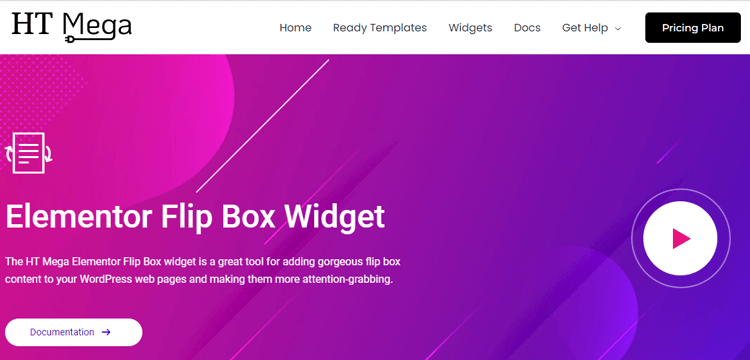
HT Mega is a powerful addon plugin for Elementor that extends the page builder with 90+ additional widgets and features. Among its many creative widgets, the Flip Box widget stands out as an excellent tool for creating gorgeous, attention-grabbing flip box content on your WordPress website.
The HT Mega Flip Box widget offers five different layout styles, complete customization options, and smooth flip animations that work seamlessly across all devices. Best of all, it’s available in both the free and pro versions of HT Mega.
How to Add a Flip Box in WordPress: Step-by-Step Guide
Step 1: Open Elementor Editor
First, navigate to the page where you want to add your flip box. You can create a new page (Pages → Add New) or edit an existing one. Click the Edit with Elementor button to launch the Elementor page builder interface.
Step 2: Locate the Flip Box Widget
In the Elementor editor, you’ll see a left sidebar with various widgets. Look for the search box at the top and type “Flip Box” to quickly find the widget.
Important: Make sure you select the Flip Box widget that has the “HT” badge on it. This identifies it as the HT Mega Flip Box widget.
Step 3: Drag and Drop the Flip Box Widget
Once you’ve found the HT Mega Flip Box widget, simply drag it to your desired location on the page. You can place it in any section or column of your layout. Drop it where you want the flip box to appear, and Elementor will automatically insert it with default content.
Step 4: Choose Your Layout Style
HT Mega offers 5 different flip box layout styles to choose from:
- Layout 1: Classic flip box with centered content
- Layout 2: Icon at the top with title and description
- Layout 3: Side-aligned content with icon
- Layout 4: Minimal design with emphasis on typography
- Layout 5: Bold style with large icons
Select the layout that best fits your design needs from the Layout dropdown in the widget settings.
Step 5: Customize the Front Side
With the flip box added, you’ll see the widget settings panel on the left. Start by customizing the front side under the Front tab:
Front Content Settings:
- Icon/Image: Choose whether to display an icon or upload an image for the front side
- Title: Enter a compelling title that summarizes what the flip box is about
- Description: Add a brief description or teaser text to encourage users to interact
- Alignment: Set the text alignment (left, center, or right)
If you choose Icon, you can select from thousands of icon options. If you choose Image, upload your custom image for a more personalized look.
Step 6: Customize the Back Side
Switch to the “Back” tab in the widget settings to configure what appears when users hover:
Back Content Settings:
- Icon Type: Choose Icon, Image, or Number for the back side.
- Title: Add a title for the back side (this can be different from the front)
- Description: Include the main content, details, or call-to-action text.
- Number: Include a number if relevant to your content.
- Button text: Optionally add a button with custom text and link.
- Button Link: Enter the URL where you want the button to redirect users.
The back side is where you provide detailed information or encourage visitors to take action, so make your description compelling and your button text action-oriented.
Step 7: Adjust Settings and Animation
Under the “Settings” tab, you can control the flip animation behavior:
- Flip Effect: Choose the direction of the flip (left, right, up, or down)
- 3D Depth: Adjust the intensity of the 3D effect (if available)
- Flip Trigger: Select whether the box flips on hover or click (Pro feature)
- Height: Set a custom height for the flip box to ensure both sides fit properly.
- Animation Speed: Control how fast the flip animation occurs.
These settings help you fine-tune the user experience and ensure your flip box works perfectly with your design.
Step 8: Style Your Flip Box
The “Style” tab offers extensive design customization options:
Front Style:
- Background Type: Choose solid color, gradient, or image background.
- Background Color: Select your brand colors.
- Border Type: Add borders with custom colors and widths.
- Border Radius: Create rounded or sharp corners.
- Box Shadow: Add depth with shadow effects.
- Padding: Control spacing inside the flip box.
- Icon/Image Size: Adjust the size of your visual elements.
- Title Typography: Customize font, size, weight, and color.
- Description Typography: Style your descriptive text.
Back Style:
- Background Type: Choose different background from the front for contrast.
- Content Typography: Style the back side text independently.
- Button Style: Customize button colors, hover effects, and size.
- Button Typography: Control button text appearance.
- Hover Effects: Define button behavior on hover.
Pro Tip: Use contrasting colors between front and back to make the flip effect more noticeable and engaging.
Step 9: Preview and Optimize
Before publishing, preview your flip box on different devices. Click the responsive mode icons at the bottom of the Elementor panel (desktop, tablet, mobile) to see how your flip box appears on various screen sizes.
For mobile devices, remember that hover effects don’t work the same way. Consider adjusting your settings or using click triggers if available in your version of HT Mega Pro.
Step 10: Publish Your Changes
Once you’re satisfied with your flip box design, click the “Publish” or “Update” button at the bottom left of the Elementor editor. Your flip box is now live on your WordPress website.
Note: To learn more, visit: How to use a Flipbox Widget of HTMega Addons.
Recommended Blogs For You:
👉 Best 6 Elementor Price Menu Widget: Boost Your Online Store
👉 How to Change Your WordPress Featured Image Size
👉 How to Backup Your WordPress Site Safely and Efficiently
👉 What is WordPress Hosting?: A Complete Guide for Beginners in 2025
👉 How to Add Sticky Content in Elementor: Header, Footer, Section
Best Practices for Using Flip Boxes
To get the most out of your flip boxes, consider these design and usability tips:
- Keep content concise. Both sides of the flip box should contain clear, scannable information. Avoid overcrowding either side with too much text. Aim for 1-2 sentences on the front and 2-4 sentences on the back.
- Use high-quality images. If you’re using images on the front or back, ensure they’re properly sized and optimized for web performance. Large images can slow down the flip animation.
- Maintain visual hierarchy. Make titles prominent and descriptions supportive. Guide the user’s eye naturally through the content with proper font sizing and spacing.
- Create contrast. Use contrasting colors between the front and back to make the flip effect more noticeable and engaging. This also helps visitors immediately recognize the change.
- Test the user experience. Make sure your flip boxes work smoothly on touch devices, where hover effects may not apply. Consider using click triggers for mobile users if available.
- Don’t overuse flip boxes. While they’re engaging, too many flip animations on one page can be overwhelming. Use them strategically for key information—typically 3-6 flip boxes per page works well.
- Add clear calls-to-action. If you’re using buttons on the back side, make the button text action-oriented: “Learn More,” “Get Started,” “View Portfolio,” rather than generic “Click Here.”
- Ensure accessibility. Use proper color contrast ratios and include alt text for images to make your flip boxes accessible to all users.
Troubleshooting Common Issues
- Flip box not flipping: Ensure the HT Mega Flip Box widget is enabled in HTMega Addons → Settings → Elements. Don’t forget to click Save Changes after enabling it.
- Wrong widget showing up: Make sure you’re selecting the Flip Box widget with the “HT” badge, not a flip box from another plugin.
- Flip box not flipping: Ensure JavaScript is enabled in your browser and check for plugin conflicts. Try deactivating other plugins temporarily to identify conflicts.
- Content overflowing: If text extends beyond the flip box boundaries, adjust the height setting in the Settings tab or reduce the amount of content. You can also adjust padding to create more space.
- Slow animation: Large images can slow down the flip effect. Optimize and compress images before uploading them. Use tools like TinyPNG or WordPress plugins like Smush.
- Mobile issues: Test your flip boxes on actual mobile devices, as hover effects don’t translate to touch screens. Consider the user experience on touch devices and adjust accordingly.
- Styling not applying: Clear your browser cache and any WordPress caching plugins. Also check if you’ve saved your changes in Elementor before viewing the page.
Flip Box Use Case Examples
Service Showcase
Create a row of 3-4 flip boxes highlighting your main services. Use icons on the front with service names, and detailed descriptions with “Learn More” buttons on the back.
Team Member Profiles
Display team photos on the front with names and titles. Flip to reveal brief bios, contact information, and social media links on the back.
Product Features
Showcase key product features with feature icons on the front. Flip to reveal detailed explanations and benefits of each feature.
Statistics & Achievements
Display impressive numbers or statistics on the front (like “500+ Projects Completed”). Flip to show more context about what those numbers mean.
Pricing Tiers
Present pricing plan names and monthly costs on the front. Flip to reveal what’s included in each plan with a “Choose Plan” button.
Frequently Asked Questions
How do I add a flip box in WordPress with Elementor?
Go to your page and click Edit with Elementor to open the editor. Search for the Flip Box widget in the left sidebar and drag it. Drop it into your desired section or column on the page layout. Customize front and back content, adjust flip settings, and style your design.
Can I add a flip box without Elementor Pro?
Yes, the Flip Box widget is available in both Elementor Free and Pro. Elementor Free version includes all basic flip box functionality for WordPress users. You can create, customize, and publish flip boxes without purchasing Elementor Pro subscription. Pro version adds advanced features like additional animation effects and trigger options.
What content can I put in a flip box?
Flip boxes can contain icons, images, titles, descriptions, and call-to-action buttons easily. Front side typically displays eye-catching visuals with brief teaser text or titles. Back side includes detailed information, longer descriptions, links, and action buttons effectively. You can showcase services, team members, portfolios, or any content creatively.
Why is my flip box not working on mobile?
Hover effects don’t work on touch devices so flip boxes need click triggers. Check your flip box settings and change trigger from hover to click. Ensure the flip box height is appropriate for mobile screen sizes. Test on actual mobile devices to verify the flipping animation works properly.
Why is my flip box not working on mobile?
Hover effects don’t work on touch devices so flip boxes need click triggers. Check your flip box settings and change trigger from hover to click. Ensure the flip box height is appropriate for mobile screen sizes. Test on actual mobile devices to verify the flipping animation works properly.
How many flip boxes should I use on one page?
Use flip boxes strategically for key information rather than overwhelming your page design. Three to six flip boxes work well for service showcases or team sections. Too many animated elements can distract visitors and slow down page performance. Balance engagement with usability and ensure fast loading times for best results.
Conclusion
Learning how to add a flip box in WordPress using HT Mega’s Flip Box widget for Elementor is a valuable skill that can significantly enhance your website’s interactivity and visual appeal. With the intuitive HT Mega Flip Box widget, you can create professional-looking flip animations without any coding knowledge.
Whether you’re showcasing your team, highlighting services, or creating engaging portfolio pieces, flip boxes offer a modern and effective way to present information. The five layout options in HT Mega provide flexibility for any design need, while the extensive customization options ensure your flip boxes perfectly match your brand.
Start experimenting with different designs and content combinations to find what works best for your audience. Install HT Mega today and transform your static content into interactive, engaging experiences that captivate visitors and drive conversions.