


Is your WordPress site still slow after updates? Outdated cache files could be to blame. Caching helps speed up your site by storing temporary files for quick access. However, when those files become outdated, it can slow down performance, break layouts, and display old content. This could negatively impact your site’s user experience and search rankings.
According to Amazon, a specific case study showed that every 100 milliseconds of load time can result in a 1% loss in potential revenue for their business. That means even minor delays can impact your business.
In this blog, you’ll learn how to clear WordPress cache for better site speed and a smoother browsing experience. Whether you’re a beginner or managing a business site, it’s a must. Ready to speed things up and keep visitors happy? Let’s dive in!
Key Takeaways
- Understand how WordPress cache affects your site’s loading speed.
- Discover why outdated cache files cause layout issues and slow performance.
- Learn three practical methods to clear different types of caches.
- Enhance SEO rankings and user retention by optimizing site speed.
- Prevent security vulnerabilities by removing outdated cached files.
What Is WordPress Cache
The WordPress cache is a temporary storage that saves copies of your website content copies. It helps reduce loading time by showing saved versions instead of reloading everything.
When someone visits a site, WordPress fetches data from the database first. This takes time especially when your site has many visitors or heavy traffic.
Caching skips that step and loads the page much faster for the user. According to Cloudflare, caching cuts bandwidth use by 60% and speeds up load time. It boosts your site’s performance and creates a better experience for every visitor.
Caching also reduces server strain and helps pages rank better on search engines. Many plugins and hosting services offer automatic caching options to simplify the process.
Why You Should Clear Your WordPress Cache
Studies show that 25% of visitors leave a site if it takes over 4 seconds to load. Slow websites not only frustrate users but can also hurt your business. Clearing your WordPress cache ensures that your visitors always see the most up-to-date version of your site. Here are some key reasons why clearing your cache regularly is essential:
- Fixes Display and Layout Issues: Outdated cache files can cause layout changes to not show up. Clearing the cache forces your site to load the latest styles and fixes.
- Enhances Website Speed and Performance: A fresh cache removes old files, which causes your website to load instantly. It also increases general website performance.
- Enhances User Experience: Users will enjoy a glitch-free, smooth browsing experience. Fast-loading pages improve user interaction and keep users on your website for a longer period of time.
- Helps Improve Conversions: Faster websites rank higher on search engines, leading to more traffic. A good user experience boosts conversion rates and turns visitors into customers.
- Prevents Security Risks: Outdated cache can store vulnerable data. Clearing your cache regularly helps protect your site from potential security threats.
Recommended blogs for You:
👉 How to Duplicate a Page in WordPress
👉 How to Backup Your WordPress Site Safely and Efficiently
👉 How To Create An Interior Design Website
👉 Top Elementor Calendar Widget for your Website
Types of WordPress Caching
Caching helps store data temporarily, allowing your site to load faster and providing a better user experience. Various types of caching help achieve this goal. Let’s take a closer look at the main types of WordPress caching.
- Site Cache (Page Caching): Site cache stores data like images, webpages, and files on the server. The first time a page is loaded, the data is saved. When users revisit, these elements are quickly retrieved, speeding up your website.
- Browser Cache: Browser cache works similarly to site cache but on the client’s end. It saves website files like HTML, CSS, JavaScript, and images. This helps load pages faster for returning visitors by accessing stored copies.
- Server Cache: Server cache stores material on the website server, not in the client browser. This type of caching optimizes site efficiency by storing data on the server, reducing loading time. Server cache operates on its own automatically without user assistance.
Note that: Before making any cache-related changes, it’s recommended to backup your WordPress site to prevent any data loss.
3 Effective Methods to Clear WordPress Cache
Here’s how to clear WordPress cache for better site speed with 3 effective methods.
Method 1: Clear Your Web Browser Cache
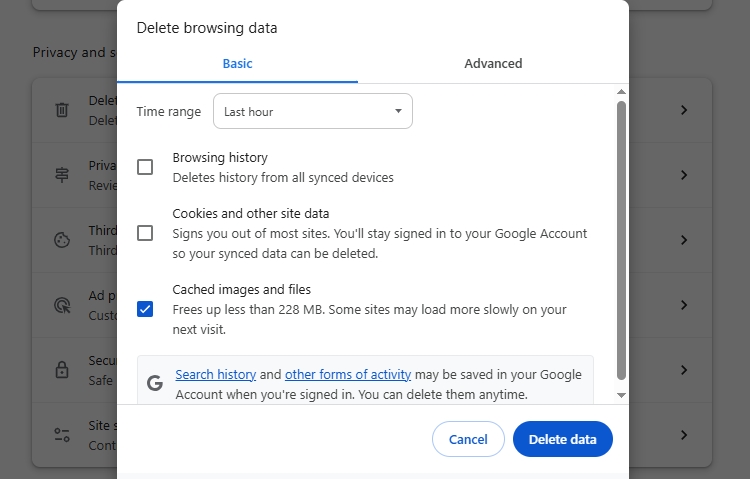
Step 1: Open your Google Chrome browser.
Step 2: Click the three-dot menu at the top-right corner.
Step 3: Go to setting and select Privacy and security.
Step 4: Choose ” Delete browsing data
Step 5: Choose Basic or Advanced mode depending on your needs.
Step 6: Set a time range and check the cache box (leave passwords unchecked).
Step 7: Click the Clear data button to remove the cached files.
Note: This approach also works similarly for other browsers, such as Firefox, Edge, and Safari.
Tip: After clearing browser cache, use an incognito/private browsing window to verify your changes are visible.
Method 2: Clear Cache Using a WordPress Caching Plugin (LiteSpeed Cache)
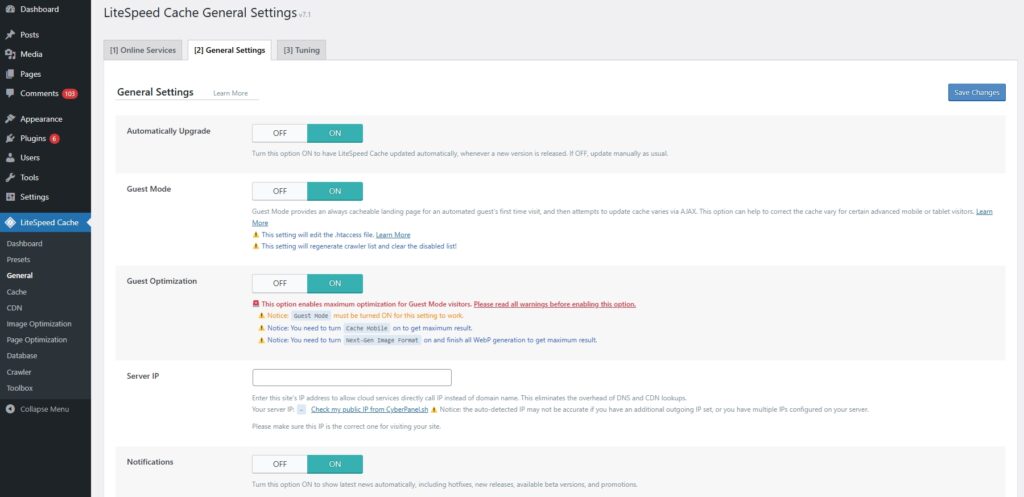
Step 1: Go to your WordPress dashboard and navigate to Plugins > Add New.
Step 2: Search for LiteSpeed Cache, then install and activate the plugin.
Step 3: From the left menu, go to LiteSpeed Cache > Toolbox.
Step 4: Click “Purge All” to safely clear all cache types.
Step 5: For selective clearing, scroll to Purge By and enter tags, URLs, or categories.
Step 6: To purge the cache from a specific page, visit the page as an admin.
Hover over the LiteSpeed icon in the admin bar and click Purge this page.
iteSpeed Cache also offers automatic cache purging schedules. Navigate to LiteSpeed Cache > Cache > Purge tab to set up automatic clearing at specific times.
📝 Note: Other popular caching plugins like WP Super Cache, W3 Total Cache, and WP Rocket offer similar functionality with slightly different interfaces.
Method 3: Clear Cache via cPanel File Manager
Step 1: Log in to your website’s cPanel account using your credentials.
Step 2: Go to the File Manager under the Files section.
Step 3: Navigate to your domain’s directory (usually /home/username/).
Step 4: Look for the cache folder (commonly named lscache, cache, or wp-cache).
Step 5: Open the cache folder and click “Select All” in the toolbar.
Step 6: Click the Delete button to remove all selected files.
Step 7: In the confirmation dialog, check Skip the trash and click Confirm.
Performance Note: After clearing cache through any method, your site may load slightly slower temporarily while new cache files are generated. This is normal and will improve once the cache rebuilds.
Tips to Manage WordPress Cache Efficiently
Managing cache smartly keeps your WordPress site running fast and error-free. Below are some practical tips to manage WordPress cache efficiently for better performance and a smoother user experience.
- Monitor and Analyze Cache Performance: Regularly monitor your website’s performance using tools like Google PageSpeed Insights or GTmetrix. These tools can help identify caching issues and areas for improvement.
- Choose a Hosting Provider with Built-in Caching: Opt for a managed WordPress hosting provider that offers built-in caching solutions. This can simplify cache management and ensure optimal performance without requiring additional plugins.
- Utilize a Content Delivery Network (CDN): Set up a CDN to disperse the static material on your website over several servers worldwide. By delivering resources from the nearest server to the user, this speeds up the transmission of content.
- Optimize Object Caching: Utilize tools to enable object caching on dynamic websites. By preventing duplicate requests and storing database query results, this enhances site performance.
Frequently Asked Questions
How often should I clear my WordPress cache?
You should clear your WordPress cache whenever you make significant changes, updates, or edits to your website. For most sites, clearing the cache after content updates, plugin installations, or theme changes is sufficient. High-traffic sites may benefit from weekly cache clearing. Regularly clearing the cache ensures your visitors see the latest content and improves page load speed.
What happens if I don’t clear WordPress cache?
If you don’t clear your WordPress cache, outdated files may slow down your site. This can impact your SEO rankings and website performance. Visitors may see old content, broken layouts, or experience functionality issues with updated features.
Can clearing the cache improve SEO?
Yes, clearing your cache improves page speed and performance, which are crucial for SEO. Faster websites improve SEO rankings and enhance user experience. Google considers page speed as a ranking factor, making cache management essential for SEO success.
Will clearing cache delete my WordPress data?
No, clearing the cache only removes temporary files, such as images and scripts. Your actual website data, including posts and pages, will remain unaffected. Cache files are copies, not original content, so clearing them is safe.
How can I prevent my WordPress cache from building up again?
You can set up automatic cache clearing in your caching plugin to avoid a buildup. This ensures your site remains fast and efficient without manual intervention. Most caching plugins offer “cache lifespan” or “TTL (Time To Live)” settings where you can specify how long cache files should be kept before automatic renewal.
Conclusion
Clearing your WordPress cache is a simple yet powerful way to improve your website’s speed and overall performance.
By regularly clearing outdated cached files, you ensure visitors experience fast, accurate, and smooth browsing every time.
This not only enhances user experience but also boosts your site’s SEO rankings, keeping you competitive in the digital space.
Remember to combine cache clearing with other optimization techniques like image optimization, minification, and using a CDN for maximum performance benefits.
Don’t let slow loading times hold you back and start clearing your WordPress cache today for better site speed and a superior user experience!