


If your Elementor pages look great but feel sluggish, you’re not imagining it. Many Elementor sites struggle with Core Web Vitals like Largest Contentful Paint (LCP) and Interaction to Next Paint (INP), especially on mobile networks. When those metrics are poor, Google can downrank your site and real visitors abandon it before they see your design.
Elementor sites usually become slow for predictable reasons: heavy layouts, too many addons, oversized images, render‑blocking scripts, and weak hosting. The fix is not one magic plugin. You need a lean build process, better asset control, and regular testing against Core Web Vitals.
You don’t fix this by installing yet another “speed booster” plugin. You fix it by controlling what loads on each page, simplifying your Elementor layouts, and combining smart infrastructure with careful asset management. In this guide, you’ll learn a practical framework to speed up your Elementor website and see how an all‑in‑one elementor addon like HT Mega, with modular widget loading and performance‑aware features, fits into that system.
Quick Answer / TL;DR
To speed up your Elementor website, start with fast hosting, caching, and a CDN, then simplify layouts with containers, reduce widget bloat, and optimize images, fonts, and JavaScript. Enable Elementor’s performance features, avoid overlapping addons, and use HT Mega’s modular widget loading to disable widgets you don’t use so fewer assets load site‑wide. Measure progress in PageSpeed Insights and Search Console instead of relying on guesswork.
Table of Contents
What does “speed up your Elementor website” mean?
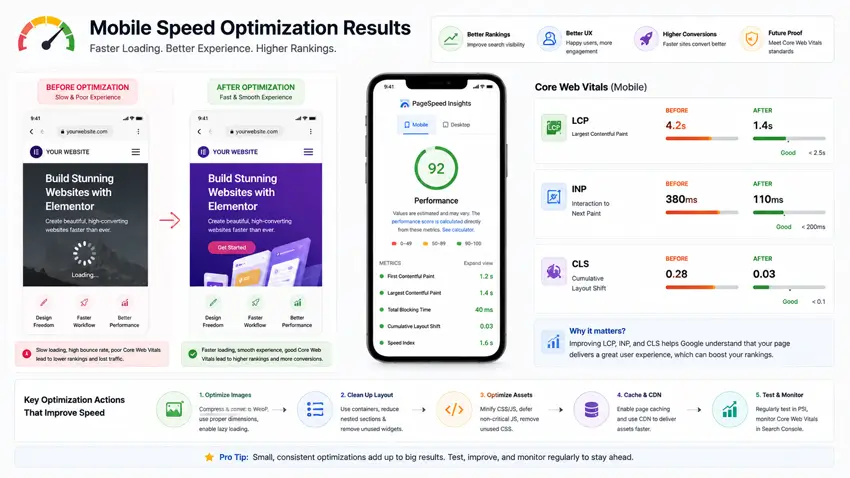
Speed is not just a PageSpeed score. For an Elementor site, it means improving real loading and interaction metrics that affect rankings and user experience.
The most important benchmarks are:
- LCP (Largest Contentful Paint): how fast the main visible content appears.
- INP (Interaction to Next Paint): how quickly the page responds when someone taps or clicks.
- CLS (Cumulative Layout Shift): how stable the layout stays while loading.
Google treats Core Web Vitals as part of the overall page experience signal, so consistently poor performance can weaken visibility alongside other ranking factors. In practical terms, a fast Elementor site should feel usable quickly, respond smoothly, and avoid layout jumps on mobile.
How to Speed Up your Website: Step by Step
1. Fix the foundation: hosting, theme, cache, and CDN
If the foundation is weak, Elementor optimization will only go so far. A slow server, bloated theme, or missing cache layer forces the browser to work harder before Elementor’s content even begins rendering.
Choose hosting that fits Elementor
Use hosting with current PHP, solid CPU resources, and server‑side caching support. NVMe storage, HTTP/2 or HTTP/3, and a nearby data center or CDN edge can reduce Time to First Byte and help your templates load faster.
Use a lightweight theme
Elementor performs best with themes that do not add their own bulky design system or page builder layer. A lightweight theme reduces CSS overlap and makes it easier to control typography, spacing, and template output cleanly.
Add caching and a CDN
A cache plugin can handle full‑page caching, compression, browser caching, and sometimes database cleanup. A CDN helps serve static files and, in some setups, cached HTML from locations closer to visitors, which matters even more if your traffic is spread across countries.
2. Clean up your Elementor layout: containers, DOM, and widget count
A large share of Elementor performance problems come from the page structure itself. Deeply nested sections, multiple inner sections, and too many interactive widgets create a heavy DOM, more CSS rules, and more JavaScript work for the browser.
Use containers instead of old nested layouts
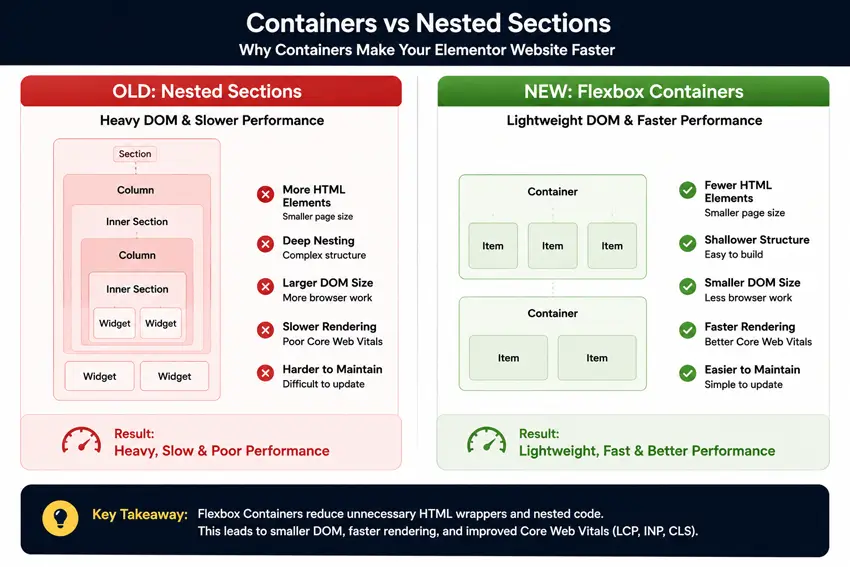
Elementor’s flexbox containers reduce DOM size compared with the older section‑column structure. In Elementor’s own guidance, containers can produce a leaner HTML structure and fewer lines of code for similar layouts.
To use them well:
- Go to Elementor → Settings → Features.
- Enable Flexbox Container and set it to active where supported.
- Build new pages with containers instead of nested sections.
- Replace rows of inner sections with one container using flex direction, gap, and alignment controls.
Reduce the number of heavy widgets
Each widget can add markup and, depending on the widget, extra CSS or JavaScript. Sliders, galleries, video sections, tabs, accordions, and multiple animated elements on one page can quickly slow down mobile rendering.
A practical approach is:
- Use one strong hero section instead of stacked sliders and videos.
- Turn long repetitive content blocks into accordions or tabs only where that helps usability.
- Avoid multiple carousels on a single page unless they directly support conversions.
A relevant internal link here is Elementor Widgets for readers who want to review widget options before simplifying their stack.
3. Optimize your assets: images, fonts, CSS, and JavaScript
Once your structure is leaner, assets usually become the next bottleneck. The goal is to reduce what loads, delay what is non‑critical, and keep above‑the‑fold content light.
Optimize images first
Large images are one of the most common reasons for poor LCP. Use WebP or AVIF where possible, compress hero images aggressively, and give images proper width and height so the layout stays stable while loading.
For most Elementor pages:
- Keep the hero image as small as quality allows.
- Lazy load below‑the‑fold images.
- Avoid background videos on key landing pages unless there is a strong reason to keep them.
Simplify fonts
Too many font families and weights add unnecessary requests and file size. Stick to one or two families, load only the weights you actually use, and host fonts locally where practical.
Reduce CSS and JavaScript overhead
Elementor and addon plugins can load a lot of CSS and JavaScript if left unchecked. Instead of relying only on “remove unused CSS” tools later, start by loading less in the first place.
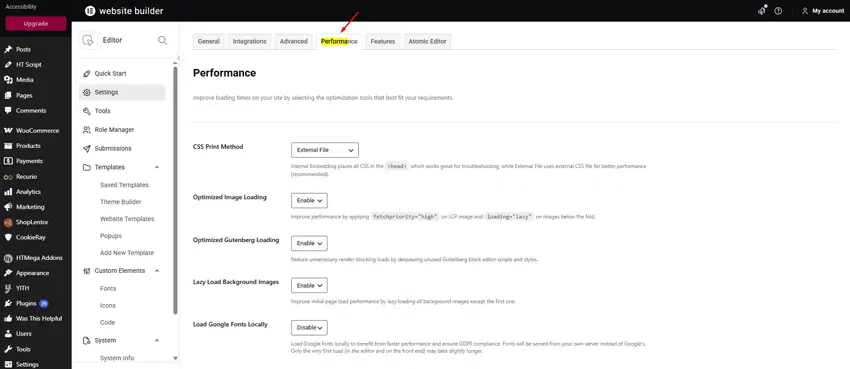
In Elementor, review the performance features in Settings → Features / Performance and enable stable options such as improved asset loading and optimized DOM output where available. Then use your cache plugin to minify and defer non‑critical assets, especially third‑party scripts like chats, popups, or marketing tools that can hurt INP.
4. Use Elemention addons carefully to reduce addon bloat
HT Mega can help speed up an Elementor site, but only if you use it as a modular toolkit rather than enabling everything. The key value here is control: keep the widgets you need and disable the rest.
Why HT Mega can help performance
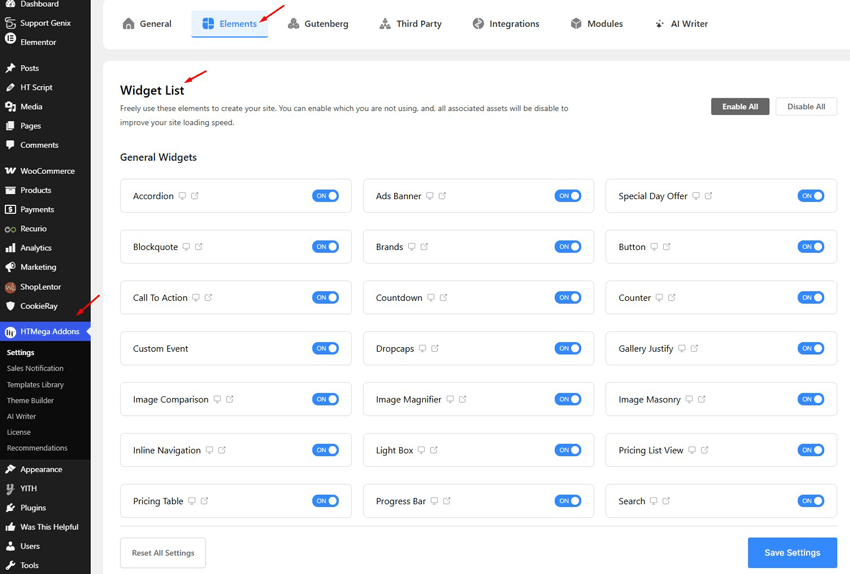
HT Mega includes a wide range of Elementor widgets and modules, plus performance‑oriented controls such as modular widget loading, asset optimization, and a widget toggle panel in its Performance Admin feature set. That matters because many slow Elementor sites are bloated by multiple addons that overlap in functionality.
If you can replace several smaller addons with one modular addon and keep only the required widgets active, you reduce plugin overlap and make your asset strategy easier to manage.
How to use HT Mega without adding weight
A practical workflow looks like this:
- List the widgets you actually use across your site, such as post grids, testimonials, tabs, timelines, or search.
- In HT Mega settings, leave only those widgets enabled and turn off the rest.
- Clear caches and test your key templates again in PageSpeed Insights.
- Remove any separate Elementor addon that only duplicates widgets HT Mega already covers.
This section is a good place to link Cross Domain Copy Paste because it supports reuse of already optimized sections across sites, which can reduce rebuild errors and keep design systems more consistent.
5. Optimize for Core Web Vitals and mobile first
Core Web Vitals are measured on real users, and mobile conditions are often the hardest environment for Elementor pages. That means a design that feels fine on a desktop editor preview can still underperform badly on real phones.
Focus on LCP and INP first
For LCP, simplify the hero area, reduce image weight, and avoid above‑the‑fold sliders or videos unless they are essential. For INP, delay non‑critical scripts and reduce how many interactive widgets fire on first load.
Test mobile, not just desktop
Always review the mobile report in PageSpeed Insights and test a few important pages on a real phone or throttled connection. If a decorative animation, large image, or extra widget is not helping the mobile user, hide it or remove it.
6. Keep your plugin stack lean
Performance declines over time when a site keeps adding plugins, widgets, scripts, and templates without cleanup. Elementor sites are especially vulnerable because each addon often brings its own CSS, JavaScript, and editor controls.
A good maintenance routine is:
- Audit all Elementor addons every few months.
- Remove overlapping plugins that solve the same widget problem.
- Clean up post revisions, transients, and stale assets with your performance tools.
- Recheck your key templates after major updates to Elementor or your addons.
If your site uses HT Mega, keep it lean by reviewing enabled widgets periodically rather than treating the full widget library as always active.
30-Minute Elementor Speed Audit Workflow
- Test your homepage and one landing page in PageSpeed Insights.
- Note the biggest LCP element and top JavaScript issues.
- Check whether the page uses old sections or containers.
- Compress the hero image and remove unnecessary sliders/videos.
- Open HT Mega settings and disable unused widgets.
- Clear the cache and retest mobile performance.
- Track changes in Search Console Core Web Vitals.
Common Elementor slowdown causes and fixes
| Slowdown cause | Why it hurts performance | Practical fix |
| Deeply nested sections and columns | Increases DOM size and layout work. | Switch to containers and simplify the structure. |
| Too many Elementor addons | Adds overlapping CSS and JS bundles. | Consolidate where possible and disable unused widgets. |
| Heavy hero sliders or video backgrounds | Slows LCP and increases asset weight. | Use a static hero or a lighter alternative. |
| Unoptimized images and fonts | Increases file size and delays rendering. | Convert images to WebP/AVIF and reduce font weights. |
| Third‑party scripts like chat or popup tools | Can block the main thread and hurt INP. | Delay non‑critical scripts or load them after interaction. |
Elementor speed optimization checklist
Use this checklist when you audit your site:
- Enable Elementor containers and stable performance features.
- Optimize hero images and lazy load the rest.
- Reduce font families and font weights.
- Use caching, compression, and a CDN.
- Audit addons and remove overlaps.
- If using HT Mega, disable every widget you do not need.
- Test important pages in mobile PageSpeed Insights and Search Console.
Frequently Asked Questions
How can you speed up your Elementor website quickly?
The fastest wins usually come from better hosting, caching, optimized images, and disabling unused widgets or addons. If your site uses HT Mega, turning off unused widgets can help reduce the amount of CSS and JavaScript your pages need to load.
Does HT Mega slow down Elementor?
It can if you activate everything and use many heavy widgets everywhere, just like any Elementor addon. Used carefully, its modular widget loading and Performance Admin features can help reduce bloat by keeping only needed widgets active.
What is the best way to improve Core Web Vitals in Elementor?
Focus first on LCP and INP by simplifying the hero area, optimizing images, reducing JavaScript, and using containers instead of deeply nested sections. Then test on mobile using PageSpeed Insights and monitor field data in Search Console.
Should you use multiple Elementor addons?
Usually only if each addon solves a clearly different problem. If several addons overlap in widgets, the extra CSS and JavaScript often outweigh the benefit, so consolidation is usually better.
Do you still need a cache plugin if you optimize Elementor?
Yes. Elementor and addon settings help reduce front‑end overhead, but cache plugins handle full‑page caching, compression, browser caching, and other server‑level optimizations.
Conclusion
To speed up your Elementor website, build for performance from the start: strong hosting, lightweight templates, fewer widgets, smaller assets, and consistent testing. HT Mega is relevant when you use it as a modular addon and disable what you do not need, not when you treat every widget as always active. That combination gives you the best chance of improving Core Web Vitals while keeping the site flexible for real design work