
Quick answer: The Elementor WooCommerce widgets you need depend on the store page. Shop pages need product discovery. Product pages need clear product information and an Add to Cart button. Cart and checkout pages need a reliable buying flow. HT Mega offers three free Elementor WooCommerce widgets (WC: Categories, WC: Add To Cart, and WC: Pages). For a product grid or mini cart, this guide points to ShopLentor.
Elementor WooCommerce widgets are drag-and-drop blocks that show live store data, like categories, buy buttons, and cart pages, inside Elementor. The right set depends on the page. A shop page needs product discovery. A product page needs a clear buy button. Cart and checkout pages need trust and speed.
This guide goes page by page. For each widget, you get what it does, when to use it, one setup tip, and a Free or Pro label. It also says where HT Mega stops and where ShopLentor, built by the same team, fills the gap.
Table of Contents
Which Elementor WooCommerce widgets does each store page need?
Start here for the short answer.
| Store page | Must-have | Optional | Skip unless needed |
|---|---|---|---|
| Homepage | Category display | Promotions, testimonials | Sales popups |
| Shop and category | Product listing, category navigation | Filters, grid and list toggle | Heavy animation |
| Single product | Title, price, images, Add to Cart | Accordion, image zoom, Countdown | 360 Rotation |
| Cart | Clear totals, checkout button | Mini cart | Extra popups |
| Checkout | Visible totals, working payment form | Layout styling | Distracting decoration |
| My Account | Orders and account access | Custom account layout | Extra widgets |
What are Elementor WooCommerce widgets?
Elementor WooCommerce widgets are Elementor elements built to work with WooCommerce data. Instead of coding a template, you drag a widget onto the page and style it. When your catalog changes, the widget updates on its own.
Two sources provide them. Elementor Pro includes a WooCommerce Builder, and Elementor’s Help Center lists its Cart, Checkout, and My Account widgets. Addon plugins like HT Mega and ShopLentor add more. HT Mega’s WordPress.org FAQ says its library works with free Elementor.
How we chose these Elementor WooCommerce widgets
A widget made the list only if it passed four checks:
- It does a job on a specific store page. Nothing is here just because it looks good.
- Its Free or Pro status is confirmed on HT Mega’s widgets page, the HT Mega WordPress.org listing, or the ShopLentor WordPress.org listing.
- It has a clear setup path in the plugin’s docs.
- It is fair to say who needs it. If most stores can skip a widget, we say so.
We did not run speed tests for this article, so you will not find benchmark numbers here. Test every widget on your own site. You can browse the full HT Mega widget library to see what else is available.
Elementor WooCommerce widgets for shop and category pages
Shoppers decide fast on these pages. Your job is to give them a clear path to the right products.
WC: Categories (HT Mega · Free)
The WC: Categories widget shows your product categories with images. Use it on the homepage, the shop page, or a landing page so shoppers can jump to the right section. In the settings, you can change the number of columns and how many categories appear.
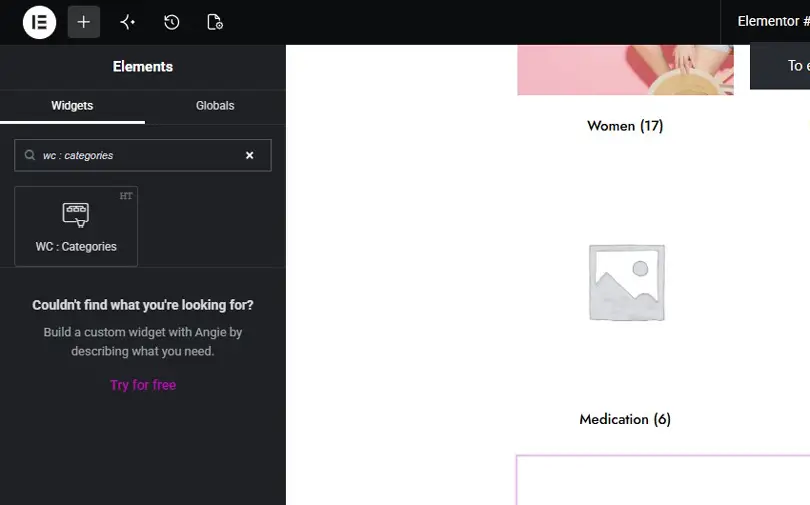
Setup tip: show your best-selling categories first, then check the grid on a phone. For a deeper look, read our guide to WooCommerce category widgets.
Product grid widgets (ShopLentor · Free plugin)
HT Mega does not have a product grid widget. ShopLentor does, and it is one of the Elementor WooCommerce widgets worth adding for a shop page. Its WordPress.org listing names a Product Grid plus Modern, Editorial, Magazine, and Luxury layouts, and says the plugin works with free Elementor and WooCommerce. Product Grid also appears among the features listed for the free version.
Use a grid on your shop page or on a sale landing page.
Setup tip: pick one layout and keep it the same across category pages. Check the listing before you plan around the newer layout variants, because it does not label each one Free or Pro.
Elementor WooCommerce widgets for single product pages
A product page has one main job: make the next step obvious.
Start with the basics: title, price, images, rating, and an Add to Cart button. Elementor’s Single Product template and its matching widgets need Elementor Pro, according to Elementor’s Help Center. ShopLentor lists Elementor WooCommerce widgets for the title, price, gallery, and rating. HT Mega covers the buy button with WC: Add To Cart.
WC: Add To Cart (HT Mega · Free)
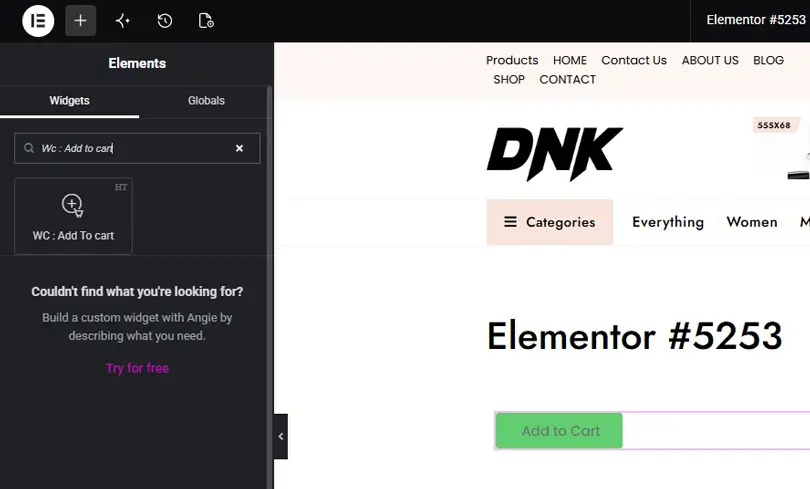
The WC: Add To Cart widget puts a buy button where your design needs it, not only where the theme placed it. In Elementor, search for “WC: Add To Cart” and choose the one with the HT badge, as the HT Mega docs describe.
Setup tip: keep the button visible without scrolling on mobile. If you want shoppers to add items without a page reload, ShopLentor lists a free Single Product Ajax Cart module.
Image Magnifier (HT Mega · Free)
Image Magnifier adds a zoom effect to an image. Use it for products where detail matters, like fabric texture, jewelry, or ports on electronics. It is a general image widget, so check how it works with your product gallery before you replace any gallery.
Setup tip: upload images large enough to zoom, then compress them so the page stays light.
Accordion (HT Mega · Free)
The Accordion widget hides long answers behind short headings. Use it for shipping, returns, size help, and FAQs. Returns matter. In Baymard’s list of reasons for abandonment, an unsatisfactory returns policy accounts for 13% (excluding shoppers who were just browsing), according to Baymard, last updated September 22, 2025.
Setup tip: put a one-line returns summary in the first panel and link to the full policy.
Countdown (HT Mega · Free)
Countdown shows a timer. Use it only for a real deadline, like the end of a sale. A fake timer costs you trust.
Setup tip: match the end time to your WooCommerce sale schedule, so the page and the price end together.
360 Rotation (HT Mega · Pro)
360 Rotation gives shoppers an interactive 360° view, according to the HT Mega plugin listing. Use it where shape matters, like shoes or gadgets. Most stores do not need it.
Setup tip: use it on your top few products only, because each extra image set adds page weight.
Elementor WooCommerce widgets for cart and checkout pages
This is where sales are lost. Baymard Institute tracks the average cart abandonment rate at 70.19%, per its cart and checkout research page (accessed October 12, 2026). Its survey found that 17% of US online shoppers abandoned an order because the checkout was too long or complicated. Design cannot fix prices, but it can keep the form clean and the costs visible.
WC: Pages (HT Mega · Free)
The WC: Pages widget lets you pick your cart or checkout page from a dropdown, display it in an Elementor layout, and style it. Per the docs, cart styling covers the table heading and body. Checkout styling covers labels, inputs, payment, and order review. You turn it on under HTMega Addons > Settings > Third Party.
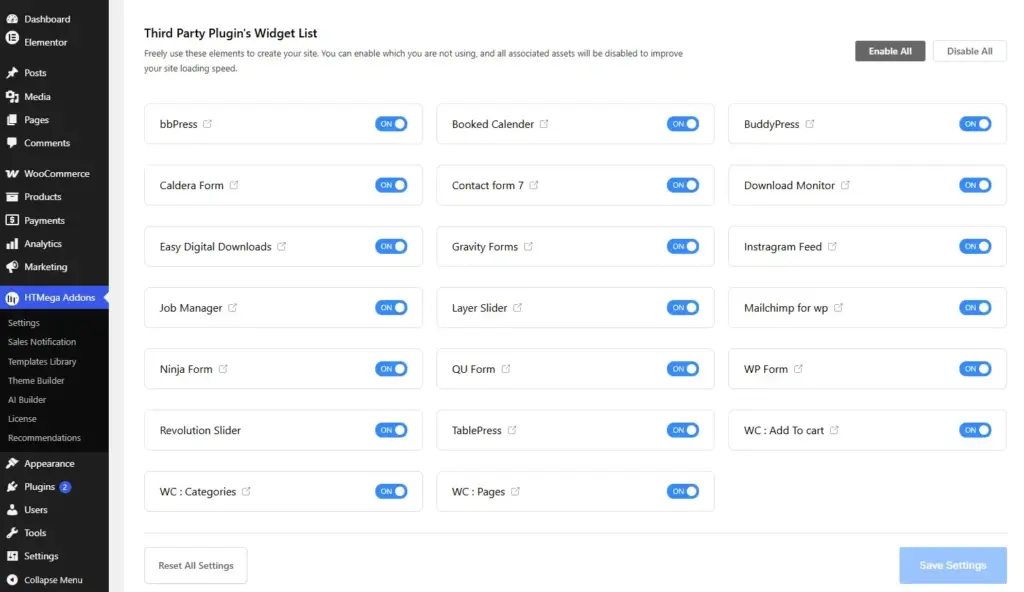
Use it when you want a branded cart or checkout without a full builder. It styles the page you pick. It does not rebuild the checkout structure.
Setup tip: after styling, place a test order on mobile and desktop to confirm every field still works. Test it with the cart and checkout setup your store uses.
Side Mini Cart (ShopLentor · Pro)
HT Mega has no mini cart widget. ShopLentor lists a Side Mini Cart, a slide-out cart drawer, among its Pro modules. Use it when shoppers add several items, and you do not want to send them to the cart page each time.
Setup tip: make sure the drawer shows the checkout button clearly, then test it on a small phone screen.
Checkout and My Account widgets (ShopLentor · Pro, plus a free module)
ShopLentor lists Checkout, My Account, and Thank You page widgets as Pro. It also lists a Shopify Style Checkout as a free module. Choose these when WC: Pages styling is not enough, and you need to change the checkout layout itself.
Setup tip: change one thing at a time and re-test payment after each change.
Elementor WooCommerce widgets for promotions and trust
These widgets are not WooCommerce-specific, but they work well on store pages.
Copy Coupon Code (HT Mega · Pro)
Copy Coupon Code creates a click-to-copy coupon, per the plugin listing. Use it in a sale banner so shoppers do not have to type a code.
Setup tip: create the coupon in WooCommerce first and test it at checkout before you publish the banner.
Special Day Offer (HT Mega · Free)
Special Day Offer is built for holiday and event promotions. Use it for seasonal campaigns on your homepage or a landing page.
Setup tip: plan the discount in WooCommerce first, then design the offer around it.
Sales Notification (HT Mega module · Free)
The Sales Notification module can show recent WooCommerce orders or custom notifications, according to HT Mega’s docs. Use real order data on stores with steady orders. Use custom notifications for announcements, and do not present made-up activity as real customer orders.
Setup tip: space notifications 10 to 15 seconds apart, as the docs suggest, and keep them off checkout so nothing distracts from payment.
Testimonial (HT Mega · Free)
The Testimonial widget displays customer reviews. Use it on landing pages and category pages.
Setup tip: use real customer words, and keep each quote short.
Quick comparison table
Here are all the Elementor WooCommerce widgets from this guide in one place.
| Widget | Store page | Use case | Provider | Free/Pro |
|---|---|---|---|---|
| WC: Categories | Shop, home | Show categories | HT Mega | Free |
| Product Grid | Shop | Show products | ShopLentor | Free plugin |
| WC: Add To Cart | Product | Buy button | HT Mega | Free |
| Image Magnifier | Product | Zoom on detail | HT Mega | Free |
| Accordion | Product | Shipping, returns, FAQ | HT Mega | Free |
| Countdown | Product, landing | Real sale deadline | HT Mega | Free |
| 360 Rotation | Product | 360° view | HT Mega | Pro |
| WC: Pages | Cart, checkout | Style the page | HT Mega | Free |
| Side Mini Cart | Site-wide | Slide-out cart | ShopLentor | Pro |
| Checkout and My Account widgets | Checkout, account | Custom layouts | ShopLentor | Pro |
| Copy Coupon Code | Promo, landing | Click-to-copy coupon | HT Mega | Pro |
| Special Day Offer | Home, landing | Seasonal offers | HT Mega | Free |
| Sales Notification | Shop, product | Live sales popups | HT Mega | Free |
| Testimonial | Landing, category | Social proof | HT Mega | Free |
Example workflow: add buy-focused elements to a product page
This is a generic workflow for using Elementor WooCommerce widgets, not a case study. Before you start, make sure WooCommerce, Elementor, and HT Mega are active, and that you have an editable Single Product layout. Elementor’s Single Product template needs Elementor Pro, and ShopLentor lists a Single Product Page Builder that works with free Elementor. Your options depend on your theme, Elementor plan, and any builder plugin.
- Open the Single Product template in Elementor. Sketch the layout: images on the left, buy details on the right, extra details below.
- Go to HTMega Addons > Settings > Third Party and enable WC: Add To Cart.
- Drag the WC: Add To Cart widget into the buy column. Pick the one with the HT badge.
- Add an Accordion below with panels for Shipping, Returns, and FAQ.
- Running a sale? Add a Countdown above the button with a real end date.
- Preview on mobile, then tablet. Add a product to the cart from a phone-sized screen. For variable products, test variation selection on each variation.
- Run Google PageSpeed Insights before and after, and remove anything that slows the page more than it helps.
For a longer walkthrough, read our guide to building a WooCommerce product page with Elementor.
Common mistakes with Elementor WooCommerce widgets
- Turning on every widget. HT Mega lets you switch widgets on and off in settings. Enable only what you use. Its 3.1.0 release in May 2026 also improved conditional frontend asset loading, according to the plugin changelog on WordPress.org.
- Skipping mobile checks. A layout that looks neat on desktop can push the buy button below the fold on a phone.
- Hiding costs. In Baymard’s list, 12% of abandoners could not see the total order cost up front. Show shipping and tax early.
- Forcing an account. Baymard’s list shows 18% abandoned because the site wanted them to create one. Offer guest checkout.
- Using fake urgency. Countdown timers should match real deadlines.
- Styling checkout without test orders. One broken payment field costs more than any design gain.
- Assuming free Elementor covers every one of the Elementor WooCommerce widgets. Elementor’s own Cart, Checkout, and My Account widgets are part of Elementor Pro.
Free vs Pro: what you can do with each
Here is what each plugin offers for Elementor WooCommerce widgets, based on the pages we checked.
| Plugin | Free | Pro |
|---|---|---|
| HT Mega | WC: Categories, WC: Add To Cart, WC: Pages, Countdown, Special Day Offer, Image Magnifier, Accordion, Tab, Testimonial, Sales Notification module | Copy Coupon Code, 360 Rotation, and other Pro widgets and modules |
| ShopLentor | Product Grid, Single Product Ajax Cart, Shopify Style Checkout, Redirect to Checkout, Grid/List View Toggle | Cart, Checkout, My Account, and Thank You builders, Side Mini Cart, Quick Checkout |
| Elementor Pro | Not applicable | WooCommerce Builder, with Cart, Checkout, and My Account widgets |
One note on requirements. HT Mega’s WordPress.org FAQ says Elementor Pro is not mandatory. Its pricing page adds that some advanced features may need it.
Check each feature before you buy. Plans change with offers, so see the current HT Mega pricing.
Conclusion
The best set of Elementor WooCommerce widgets is the smallest one that covers each page. Start with categories, a clear buy button, and a styled cart and checkout. Add promotion and trust widgets only after the basics work. Then test on mobile.
HT Mega covers the basics with three free Elementor WooCommerce widgets. When you need a product grid, mini cart, or full checkout builder, ShopLentor is the natural next step. Want to try it? Download the free HT Mega plugin and build one page first.
Frequently Asked Questions
What are Elementor WooCommerce widgets?
Elementor WooCommerce widgets are drag-and-drop elements that display WooCommerce data, such as categories, buy buttons, and cart pages. You style them in Elementor instead of editing code. They update when your store data changes.
Do I need Elementor Pro to use Elementor WooCommerce widgets?
Elementor’s own WooCommerce Builder and its Cart, Checkout, and My Account widgets are part of Elementor Pro. Addons like HT Mega and ShopLentor add Elementor WooCommerce widgets that their listings say work with free Elementor. Check the requirements for each feature.
Which Elementor WooCommerce widgets does HT Mega include?
HT Mega includes three Elementor WooCommerce widgets: WC: Categories, WC: Add To Cart, and WC: Pages. All three are labeled Free on HT Mega’s widgets page. It also offers general widgets, such as Countdown and Accordion, that work well on store pages.
Does HT Mega have a product grid or mini cart widget?
No. HT Mega’s widgets page lists no product grid, product carousel, or mini cart. ShopLentor offers a Product Grid in its free plugin and a Side Mini Cart as a Pro module.
Can I style my WooCommerce cart and checkout page with Elementor?
Yes. HT Mega’s WC: Pages widget lets you choose a cart or checkout page and style it, but it is not a full checkout builder. Elementor Pro and ShopLentor Pro also offer cart and checkout widgets.
Do Elementor WooCommerce widgets slow down my store?
They can, like any plugin feature. Enable only the widgets you use, compress images, and compare PageSpeed Insights results before and after you add each one.
Which widgets should a small store start with?
Start with WC: Categories, WC: Add To Cart, and a tested cart and checkout. Add Elementor WooCommerce widgets for promotions, like Countdown or Copy Coupon Code, only when you run a real campaign.