


Quick answer: AI with Elementor helps designers plan layouts, generate content, create visuals, and speed up website creation. The best workflow is to use AI for first drafts and ideas, then refine everything inside Elementor with proper widgets, design decisions, SEO optimization, and human review.
Using AI with Elementor helps you build websites faster by reducing the time spent on blank-page planning, first-draft layouts, copy, image variations, and routine CSS. The best results don’t come from asking AI to “make a complete website” and publishing whatever appears. They come from combining a precise brief, AI-assisted drafts, reusable Elementor components, and a deliberate human review.
For designers, freelancers, and agencies, that means a simple division of labor: AI handles the repetitive starting work; you control strategy, hierarchy, branding, conversion paths, and quality. HT Mega can then help turn AI-generated ideas and copy into finished sections using Elementor widgets, templates, and its in-editor AI Builder.
AI-assisted website creation is becoming increasingly relevant. According to W3Techs data published in September 2026, Elementor is used by 12.7% of all websites. McKinsey’s State of AI 2025 report also found that 71% of surveyed organizations regularly used generative AI in at least one business function, with marketing and sales among the most common areas of adoption.
Table of Contents
What Is AI with Elementor?
AI with Elementor means using artificial intelligence to plan page structures, generate Elementor layouts, draft website copy, create or edit images, and produce small pieces of custom code. You still use Elementor’s visual editor to control the final design, responsive behavior, branding, and user experience.
AI can speed up AI website design workflows by helping designers create layouts, copy, and visual concepts faster, while Elementor gives them the control needed to refine the final experience.
If you’re wondering how to use AI in Elementor, start with a clear website brief. Generate the page structure first, create one section at a time, refine the content, and complete the design with suitable Elementor widgets.
This approach gives you an AI website builder Elementor workflow without handing the entire project to automation. AI produces the first draft, while you make the strategic and creative decisions required for a professional website.
What AI Can Do?
In an Elementor workflow, AI can support four practical areas:
- Planning: Turn a client brief into page goals, a sitemap, section order, and draft wireframes.
- Content: Draft headlines, benefit statements, calls to action, FAQs, product descriptions, and alternate versions.
- Visuals: Generate or edit images, remove or replace backgrounds, and create variations for different page sections.
- Code and styling: Draft CSS, HTML, or small interaction ideas that you can inspect and test before use.
Elementor’s native AI tools can create container layouts from prompts and return multiple wireframe variations. Elementor also supports in-editor text generation, tone changes, shortening, expansion, grammar correction, and translation.
Its image tools can generate new visuals and edit existing Media Library files. Available edits include generative fill, resizing, background removal or replacement, image expansion, cleanup, and variations.
The keyword is draft. AI can produce a useful starting point, but it cannot verify every business fact, understand every client preference, or guarantee that a page is accessible, responsive, fast, and conversion-focused.
Before You Open Elementor
A strong prompt cannot rescue a weak brief. Spend a few minutes defining the inputs that AI needs before asking it to generate layouts or copy.
Create a one-page build brief with:
- The business, offer, and service area.
- The primary audience and its biggest problem.
- One measurable goal for the page.
- The primary and secondary calls to action.
- Required proof, such as reviews, certifications, guarantees, or results.
- The brand voice, colors, fonts, and image direction.
- Required sections, legal text, and technical constraints.
- Target keywords and important entities, where search visibility matters.
For client work, label each input as confirmed, needs approval, or placeholder. This prevents an AI draft from quietly turning assumptions into published claims.
Next, gather approved source material. Give the AI the client’s existing service descriptions, product data, brand guide, testimonials, contact details, and offer terms. Never ask it to invent reviews, credentials, prices, customer numbers, or performance results.
Set Up Your Stack
You can use Elementor AI, HT Mega’s AI Builder, or an external AI assistant. The right choice depends on where you want the generation to happen and what you need to produce.
| Tool | Best use | Important consideration |
|---|---|---|
| Elementor AI | Generating Elementor containers, copy, images, and code inside the editor | AI actions use credits or allowances based on the eligible plan. |
| HT Mega AI Builder | Generating sections or multi-section pages with HT Mega widgets and improving widget copy | It requires your own API key and sends the prompt and relevant page context to your selected provider. |
| External AI assistant | Research synthesis, messaging, information architecture, prompt development, and copy drafts | You must transfer approved output into the site and protect confidential client data. |
| HT Mega templates and widgets | Converting ideas into editable, reusable Elementor sections | Enable only the elements the site actually needs. |
Install Elementor first, then install HT Mega from Plugins > Add New. HT Mega depends on Elementor, but Elementor Pro is not required to access the HT Mega library.
HT Mega combines a large collection of widgets, blocks, page templates, and modules for building different types of Elementor websites. Available options include Theme Builder, Mega Menu Builder, Wrapper Link, Floating Effects, Post Duplicator, and other design and workflow tools.
Features and plan entitlements can change. Check the HT Mega pricing page before promising a particular widget or template to a client.
Why Use HT Mega with AI?
AI can suggest a page structure, draft content, and generate an initial layout. HT Mega helps you turn that output into practical, editable Elementor sections using Elementor widgets, ready-made Elementor templates, and specialized modules.
Instead of relying on generated HTML for every feature, you can match each requirement with an appropriate widget. For example, you can use purpose-built widgets for services, testimonials, pricing tables, FAQs, working processes, forms, post layouts, and WooCommerce sections.
This creates a more controlled Elementor AI website builder workflow. AI speeds up the initial work, while HT Mega provides the building blocks needed to complete and maintain the website.
A Faster Seven-Step Workflow
1. Turn the brief into a page plan
Start with the page objective, not the visual style. Ask AI to recommend a section sequence that moves a visitor from problem to proof to action.
A useful planning prompt is:
Create a homepage outline for a three-person WordPress agency serving local healthcare businesses. The page goal is to generate discovery-call bookings. Include the purpose of each section, the visitor question it answers, the proof required, and the primary CTA. Do not invent statistics, clients, awards, or testimonials.
Review the output and remove anything that doesn’t support the page goal. A typical service homepage may need a hero, trust indicators, services, process, proof, testimonials, FAQ, and final CTA, but the evidence you actually have should determine the final order.
If you use an AI site planner, treat its sitemap and wireframe as a proposal. A site planner can help generate a brief, visual sitemap, and content-rich wireframes, making it useful for reaching a reviewable first draft faster.
2. Establish global design rules
Set global colors, fonts, button styles, content width, spacing, and image direction before generating detailed sections. This gives every draft the same visual constraints and reduces page-by-page cleanup.
Create a small design token sheet for the project:
- Primary, secondary, accent, surface, and text colors.
- Heading and body typefaces with defined weights.
- Standard spacing values, such as 8, 16, 24, 40, and 64 pixels.
- Button radius, padding, hover behavior, and focus style.
- Image ratios for heroes, cards, team members, and products.
Keep these rules in the client brief and reuse them in prompts. Consistency saves more time than generating endless visual variations.
3. Generate one section at a time
Open a blank container in Elementor and describe the section’s purpose, structure, content, style, and responsive behavior. Include the desired layout, colors, widgets, purpose, and visual direction in the prompt.
Use a prompt such as:
Create a two-column hero for a WordPress maintenance service. Put an eyebrow label, outcome-led H1, two-sentence supporting copy, primary button, and text link on the left. Put a dashboard image placeholder and three short trust points on the right. Use a clean B2B style, generous whitespace, and a stacked mobile layout. Do not add unverified numbers.
Choose the strongest structure, then edit it. Don’t keep regenerating just because the first option isn’t polished. Refine the prompt to generate more relevant alternatives and reduce unnecessary AI usage.
You can also create a container based on a reference page. Use references for broad composition and hierarchy—not for copying a competitor’s branding, illustrations, copy, or distinctive design.
4. Draft copy inside its context
Generate copy after the section has a purpose and approximate space. A headline written for a compact card needs different constraints from copy written for a full-width hero.
Include five details in a content prompt:
- Audience: Who is reading?
- Goal: What should the copy make them understand or do?
- Offer: What is being presented?
- Evidence: Which approved facts can it use?
- Constraint: Length, tone, format, and phrases to avoid.
Example:
Write three service-card descriptions for a WordPress agency serving growing WooCommerce stores. Each description should be 22–28 words, explain an outcome, avoid hype, and use plain English. Services: performance optimization, checkout improvement, and ongoing maintenance.
Elementor AI can respond to the context of the widget you’re editing. It can also shorten, expand, simplify, correct, change the tone of, and translate existing text. Even so, verify names, numbers, prices, product functions, legal statements, and links against approved sources before publishing.
5. Complete sections with HT Mega
AI is good at suggesting a section, but a dedicated widget often gives you better controls and a more maintainable implementation. Instead of forcing generated HTML to handle every feature, map each content need to an Elementor or HT Mega widget.
| Page need | Practical HT Mega option | How AI helps first |
|---|---|---|
| Feature or service summary | Services, Info Box, Icon Box, or ready-made Services section | Draft labels, benefit copy, and section order |
| Social proof | Testimonial widget or Testimonial Carousel | Shorten approved reviews without changing their meaning |
| Plans or packages | Pricing Table or Pricing List View | Normalize feature labels and write concise plan descriptions |
| Questions and objections | FAQ widget or Accordion | Group verified questions and draft direct answers |
| Process explanation | Working Process or Vertical Timeline | Convert the delivery process into clear steps |
| Lead generation | Contact Form 7, Gravity Forms, or WPForms widget | Draft labels, helper text, and confirmation messages |
| WooCommerce promotion | Add to Cart, Categories, Banner, or Special Day Offer | Draft product benefits and campaign copy |
The HT Mega Elementor widgets directory identifies individual widgets and helps you check which options match a project’s needs. It includes tools for pricing, services, FAQs, testimonials, forms, WooCommerce, creative layouts, post displays, and other common page requirements.
HT Mega’s AI Builder lets you connect a supported AI provider with your own API key, generate or rewrite widget content, and speed up section creation. If the labels or controls differ in your dashboard, update HT Mega and follow the interface available in your installed version.
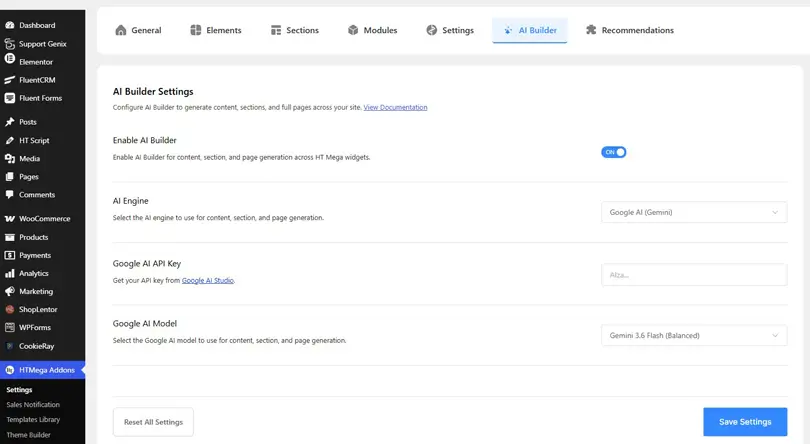
To configure it:
- Open HTMega Addons > AI Builder or AI Writer if you’re using an older version.
- Enable the feature.
- Select an available AI provider and model.
- Add your provider API key.
- Save the settings.
- Open Elementor and use the AI control beside a supported content field, or start section or page generation from the available AI Builder interface.
- Review the output before applying it.
Because the selected provider receives the prompt and relevant page context, never paste passwords, private customer records, unpublished financial details, health information, or other sensitive client data into a prompt.
6. Use AI for visuals and CSS carefully
For images, specify subject, setting, composition, lighting, brand mood, aspect ratio, and where the image will appear. A hero image prompt should reserve visual space for the headline instead of centering every important object.
Elementor AI can generate images directly for image-capable elements. Its editing tools can expand, clean up, resize, create variants, and remove or replace backgrounds.
For WooCommerce catalogs, consistent product photography often matters more than novelty. AI tools can help apply a consistent background to selected product images and preview the result before use. Keep the original source images, inspect edges and product details, and confirm that the generated result does not misrepresent the item.
AI can also draft CSS for micro-interactions, spacing fixes, or responsive adjustments. Ask for a tightly scoped rule, then inspect it for valid selectors, unnecessary declarations, accessibility issues, and conflicts at each breakpoint.
HT Mega’s Custom CSS module lets you attach element-level CSS and target the relevant wrapper. This can keep a small AI-assisted style close to the widget it affects, but it doesn’t remove the need for staging, browser testing, and maintainable naming.
7. Run a human launch review
AI output is not launch-ready until it passes a structured review. Use a staging site and check the page in this order:
- Accuracy: Verify every claim, price, date, testimonial, credential, address, phone number, and policy.
- Conversion: Make the main CTA clear, specific, visible, and consistent with the page goal.
- SEO: Use one descriptive H1, logical heading levels, a concise title, a compelling meta description, descriptive links, and useful image alt text.
- Accessibility: Check keyboard navigation, visible focus, color contrast, form labels, button names, heading order, and meaningful alternative text.
- Responsive design: Inspect desktop, tablet, and mobile rather than trusting generated breakpoints.
- Performance: Compress images, avoid unnecessary widgets and animations, remove unused elements, and test the final URL.
- Functionality: Submit forms, test menus, verify links, trigger popups, check WooCommerce actions, and review success and error states.
- Governance: Record which AI tools processed client inputs and get approval for final copy and visuals.
For more detail, follow this guide on how to speed up your Elementor website. In general, use appropriately sized images, modern image formats, lazy loading where suitable, caching, a CDN when required, and only the plugins and widgets the site needs.
Practical WooCommerce Example
Imagine an agency needs to launch a landing page for a sustainable skincare collection. The page needs a hero, three product benefits, category shortcuts, a testimonial section, FAQs, and a purchase CTA.
A fast, controlled workflow would look like this:
- Brief: Confirm the product ingredients, approved benefit claims, target customer, offer terms, delivery area, and return policy.
- Plan: Ask AI for a conversion-focused section order and the purpose of each section.
- Hero: Generate a two-column Elementor container, then replace placeholder text with verified brand copy.
- Products: Use AI to shorten approved product descriptions, then display categories with the WooCommerce Categories widget and the primary item with the Add to Cart widget.
- Benefits: Use the Services widget or a suitable ready section for three scannable benefit cards.
- Proof: Add only approved customer feedback through the Testimonial widget.
- FAQ: Organize delivery, ingredients, returns, and usage questions in the FAQ or Accordion widget.
- Images: Standardize approved product photos, compress exports, and add accurate alt text.
- QA: Test mobile layouts, cart behavior, offer details, forms, analytics events, and page speed.
This approach saves time because AI creates and refines the first drafts while the editor and widgets preserve control. It also reduces the risk of publishing invented product claims or fragile generated code.
For a more detailed store workflow, read how to build a WooCommerce product page with Elementor.
Prompts Worth Saving
Freelancers and agencies should maintain a small prompt library instead of starting from scratch on every project.
Section planning prompt
Recommend the best section sequence for a [page type] selling [offer] to [audience]. The primary conversion is [action]. For each section, state its purpose, visitor question, required evidence, and CTA. Use only the facts supplied below and mark missing proof as [NEEDS CLIENT INPUT].
Layout prompt
Create a [section] with [columns/content blocks]. Use [style direction], [spacing direction], and [image position]. Make it stack cleanly on mobile. Include placeholders only; do not invent business claims.
Copy prompt
Write [number] alternatives for a [widget/section]. Audience: [audience]. Goal: [goal]. Approved facts: [facts]. Tone: [tone]. Limit: [length]. Avoid [phrases].
QA prompt
Review this page copy for unsupported claims, unclear CTAs, duplicated ideas, inconsistent terminology, missing objections, and sentences that sound generic. Return a prioritized issue list. Do not rewrite factual claims without flagging them.
Save the prompts with variables in your agency SOP. Pair them with reusable Elementor templates and approved widget combinations so each new project begins with a tested system rather than a blank canvas.
Common Mistakes
Publishing the first output
The first draft may be structurally useful but generic. Edit it against the brief, replace vague claims with evidence, and make the CTA specific.
Asking for a whole site at once
A broad prompt hides errors and creates inconsistent sections. Generate the architecture first, then work page by page and section by section.
Choosing novelty over usability
AI often suggests extra effects, gradients, animations, and cards. Keep only the elements that improve hierarchy or help the visitor complete a task.
Adding too many widgets
More widgets do not automatically create a better website. Use the smallest set that achieves the design, enable only required HT Mega elements, and test frontend assets.
Trusting generated code
Treat AI-written CSS, HTML, and JavaScript like code from an unknown contributor. Read it, limit its scope, test it on staging, and keep a rollback path.
Ignoring rights and privacy
Don’t upload confidential material, copyrighted assets you cannot reuse, or personal customer data without permission. Check each AI provider’s current terms and your client’s data-handling requirements.
How Much Faster Is It?
There is no reliable universal percentage for website delivery because project scope, content readiness, integrations, approvals, and revision rounds vary. AI typically saves the most time during planning, ideation, layout drafting, content refinement, image editing, and routine coding.
The broader productivity evidence is promising. McKinsey estimated in 2023 that generative AI could create productivity value equal to 5% to 15% of total marketing spending. Its 2026 State of AI survey also found that eight in ten respondents believed AI had improved their personal productivity.
These figures show the broader potential of AI-assisted work. They do not guarantee that every Elementor project will be completed within a specific timeframe.
Conclusion
The fastest reliable way to use AI with Elementor is to systemize the work around it. Start with verified inputs, generate a page plan, set global styles, draft one section at a time, and use appropriate Elementor or HT Mega widgets to turn the draft into an editable website.
AI can reduce blank-page work. Your expertise still determines whether the finished site is accurate, accessible, responsive, fast, on-brand, and persuasive.
Ready to test the workflow? Explore HT Mega’s free widgets and build one real section before deciding whether your projects need additional Pro widgets, templates, or modules.
Frequently Asked Questions
What is AI with Elementor?
AI with Elementor means using AI tools to help plan pages, generate container layouts, write or refine content, create images, and draft code while building a website in Elementor. You retain control of the final design and publishing decisions.
Can Elementor AI build a complete website?
Elementor’s AI tools can assist with planning, layouts, text, images, and code. You should still review navigation, content accuracy, branding, responsiveness, accessibility, SEO, performance, and every conversion path before launch.
Does Elementor have built-in AI tools?
Yes. Elementor includes AI-assisted features for tasks such as generating text, layouts, images, CSS, HTML, and other website elements. Availability and usage limits depend on the current product and plan.
Can AI create Elementor templates?
AI can generate layouts that you can refine and save as reusable Elementor templates. For a faster starting point, you can also customize existing Elementor website templates instead of generating every layout from scratch.
How does HT Mega AI Builder work?
HT Mega AI Builder connects a supported AI provider to your Elementor workflow. You add your API key, select an available model, enter a prompt, generate or refine section content, and review the result before applying it.