


Quick answer: To build an Elementor video gallery with HT Mega, enable the Video Gallery widget in HTMega Addons settings, drag it onto your page, add your YouTube, Vimeo, or MP4 links, choose a grid or carousel layout, and style it in the Style tab. You don’t need code. The Video Gallery widget is part of HT Mega Pro.
An Elementor video gallery lets you show many videos in one tidy section. Visitors can browse, filter, and click to watch. You don’t have to stack single video embeds one under another.
The fastest way to build one is the HT Mega Elementor Video Gallery widget. You enable it, drop it on a page, add your video links, and pick a layout. This guide walks you through each step.
You’ll also see which layout fits which goal, a realistic WooCommerce store example, and fixes for the most common problems.
What is the Elementor video gallery widget?
The Elementor video gallery widget is an Elementor add-on element that displays a collection of videos as one gallery. It shows a thumbnail for each video. Visitors click a thumbnail to play it.
HT Mega’s version supports:
- Video sources: YouTube, Vimeo, and self-hosted MP4 files.
- Layouts: grid and carousel.
- Filtering: you can group videos with filter labels, so visitors can sort by category.
- Styling: controls for video items, thumbnails, filters, and the popup button.
- Responsive design: it adapts to different screen sizes.
HT Mega’s widget page shows several live variations: a standard gallery, a filterable gallery, a carousel, a mixed YouTube and Vimeo gallery, and an inline YouTube gallery.
What you need before you start
Check these four things first:
- A WordPress site with Elementor installed.
- The free HT Mega plugin.
- HT Mega Pro, activated. HT Mega’s documentation tells you to have Pro installed and active before you add this widget. See the pricing page for current plans.
- Your video links ready (YouTube, Vimeo, or MP4 files in your media library).
One honest note: the Video Gallery is a Pro widget. If you only use the free version, you won’t see it in the panel.
Why add a video gallery to your site?
Video is now a normal part of how people research and buy online. Two numbers show how mainstream it is:
- Wyzowl’s State of Video Marketing 2026 survey (266 respondents, fielded in late 2025) found that 91% of businesses use video as a marketing tool.
- According to Statista, using data from We Are Social, DataReportal, and Meltwater, 94.6% of internet users worldwide watched online videos monthly in Q2 2025.
What do these numbers mean for you? Your visitors already expect video. They don’t prove a gallery will lift your sales. Treat them as a reason to test it, then check your own engagement data.
A gallery also solves a practical problem. If you have more than two or three videos, single embeds make a page long and messy. A gallery keeps them compact and easy to scan.
How to create an Elementor video gallery (6 steps)
Step 1: Enable the Video Gallery widget
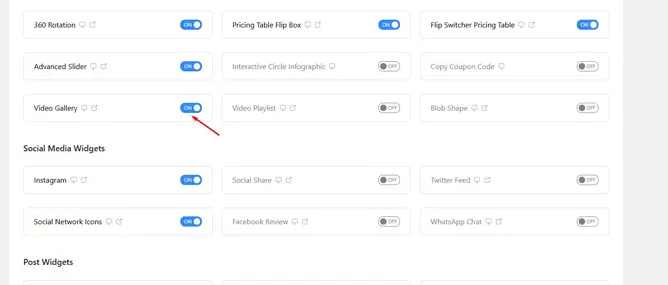
- In your WordPress dashboard, go to HTMega Addons > Settings > Elements.
- Find Video Gallery in the list and switch it on.
- Click Save Settings.
If you skip this step, the widget won’t appear in Elementor.
Step 2: Add the widget to your page
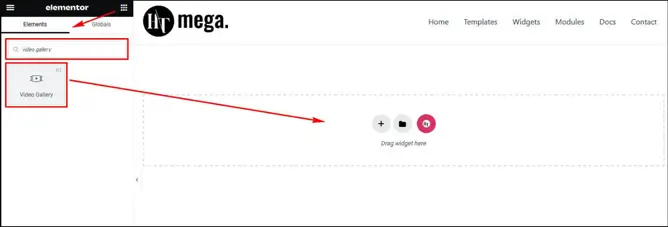
- Open the page in the Elementor editor.
- Search for Video Gallery in the widget panel.
- Drag the widget that has the HT badge onto your page.
The badge matters. Other add-ons have widgets with the same name, and the badge tells you which one is HT Mega’s.
Step 3: Add your videos
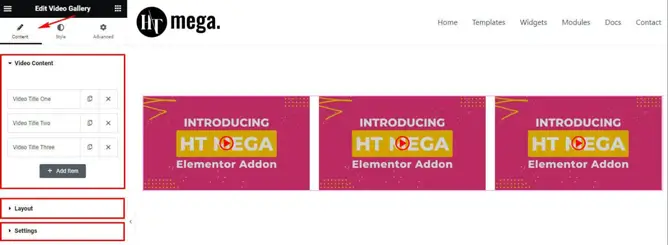
Open the Content tab. You’ll see three sections: Video Content, Layout, and Settings.
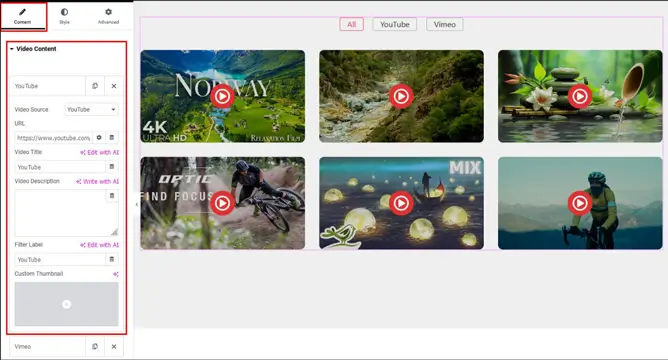
In Video Content, add one item for each video:
- Paste the video URL (YouTube, Vimeo, or an MP4 link).
- Set a Filter Label if you want visitors to filter the gallery by category.
You can mix sources in one gallery. A YouTube tutorial can sit next to a Vimeo showreel and an MP4 you uploaded.
Tip: Decide your categories before you add videos. Three to five clear labels work better than ten vague ones.
Step 4: Choose your layout
Go to the Layout section. You have two main choices:
- Grid: control the number of columns and the gap between items.
- Carousel: set how the slider behaves, including navigation and pagination.
Pick the one that matches your goal. The next section helps you decide.
Step 5: Style the gallery
Switch to the Style tab. You can customize:
- Video Item: spacing, background, and borders.
- Thumbnails: how each preview looks.
- Filter: the category buttons.
- Popup Button: the play button visitors click.
- Navigation arrows and pagination: for the carousel layout.
Start with your brand colors. Then keep the play button clearly visible against the thumbnail. A hidden or low-contrast button makes people hesitate.
Step 6: Test and publish
Before you publish:
- Switch Elementor to tablet and mobile view and check the layout.
- Click every video and confirm it plays.
- Test each filter label.
- Click Publish or Update.
Then open the live page on your phone. Editor previews don’t always match the real result.
Which Elementor video gallery layout should you use?
| Layout | Best for | Why it works |
|---|---|---|
| Grid | Portfolios, tutorial libraries, video pages | Shows many videos at once and is easy to scan |
| Filterable grid | Mixed content such as reviews, demos, and how-tos | Visitors jump straight to the category they want |
| Carousel | Homepage highlights, a few featured videos | Saves vertical space |
Simple rule: use a grid when you want people to browse. Use a carousel when you want to feature a few videos without taking much space.
Practical example: a “Product Videos” page for a WooCommerce store
Here’s a realistic scenario. It’s an example workflow, not a case study.
You run a WooCommerce store that sells kitchen gadgets. You have 12 videos on YouTube: unboxing clips, how-to demos, and customer reviews. Right now they’re scattered across product descriptions.
You could:
- Create a new page in Elementor called “Product Videos.”
- Add the Video Gallery widget and set a 3-column grid.
- Add all 12 videos and give each a Filter Label: Unboxing, How to Use, or Reviews.
- Style the filter buttons to match your shop’s colors.
- Link the page from your main menu and from relevant product pages.
Shoppers who want proof can watch a review. Shoppers who need help can open a how-to. All of it lives on one page.
Important limit: this widget works on any Elementor page. It doesn’t replace the default WooCommerce product image gallery. If you want a video inside the product photo gallery itself, you need a tool built for that.
For building the rest of your product layout, see our guide to building a WooCommerce product page with Elementor.
Best practices for a fast, useful video gallery
- Host big videos on YouTube or Vimeo. Large MP4 files uploaded to your own server can slow your site.
- Use clear thumbnails. A sharp thumbnail gets more clicks than a blurry frame.
- Keep each page focused. A gallery of 6 to 12 videos is easier to scan than 40.
- Name your filter labels in plain words. “How to Use” beats “Misc.”
- Put the best video first. Most visitors watch the first few items.
- Test speed after you publish. Run the page through Google PageSpeed Insights and compare it with your pages without video.
Want a different format? The Video Player widget suits a single hero video. The Video Playlist widget suits a watch-and-continue experience.
If you need a photo gallery, read how to create an Elementor gallery with thumbnails.
Common problems and quick fixes
- The widget doesn’t show in Elementor. Check that HT Mega Pro is active. Then confirm Video Gallery is switched on under HTMega Addons > Settings > Elements. Refresh the editor.
- A video won’t play. Check the URL. For YouTube and Vimeo, make sure the video is public and allows embedding.
- The gallery looks cramped on mobile. Reduce the number of columns for tablet and mobile in the Layout settings. Then check the spacing in the Style tab.
- The page loads slowly. Reduce the number of videos on the page. Replace large MP4 uploads with YouTube or Vimeo links.
Frequently Asked Questions
How do I add a video gallery in Elementor?
Install an add-on that includes a video gallery widget, such as HT Mega Pro. Enable the widget, drag it onto your page, add your video links, choose a layout, and publish.
Does Elementor have a built-in video gallery?
Elementor’s built-in Video widget embeds one video at a time. For a multi-video gallery with layouts and filters, you typically need an add-on.
Is the HT Mega Video Gallery widget free or Pro?
It’s a Pro widget. You need HT Mega Pro installed and active to use it.
Can I mix YouTube, Vimeo, and MP4 videos in one gallery?
Yes. HT Mega’s Video Gallery supports YouTube, Vimeo, and self-hosted MP4 videos, and you can combine them in one gallery.
Can I filter videos by category?
Yes. Add a Filter Label to each video item. Visitors can then filter the gallery by those labels.
Can I use the video gallery on a WooCommerce site?
Yes, on any page built with Elementor, such as a product videos page or a landing page. It doesn’t replace the default WooCommerce product image gallery.
Will a video gallery slow down my website?
It can if you load many heavy files. Use YouTube or Vimeo for long videos, keep the number of videos per page reasonable, and test the page with Google PageSpeed Insights.
Conclusion
An Elementor video gallery keeps your videos organized and easy to browse. With HT Mega, the process is short: enable the widget, add it to a page, paste your video links, pick a layout, and style it.
Start small. Build one gallery with five or six videos. Check how visitors use it, then expand.
Ready to try it? See the Elementor Video Gallery widget and its live demos, read the official documentation, or compare plans on the HT Mega Pro pricing page.