
Overview
Cross Domain Copy Paste is an HT Mega module that allows you to copy Elementor content from one WordPress site and paste it into a completely different WordPress site—even across different domains and servers. It eliminates the tedious export/import process and makes managing multiple sites dramatically faster.
Key Benefits
- True Cross-Domain Transfer: Copy content between any WordPress sites
- No Export/Import: Skip the download-upload-import workflow
- Perfect for Agencies: Reuse designs across unlimited client sites
- Lightning Fast: Transfer content in seconds
- Complete Preservation: Retains all styles, settings, and configurations
- Unlimited Sites: No restrictions on the number of sites
How to Enable Cross Domain Copy Paste
Prerequisites
Both the source (where you copy from) and destination (where you paste to) sites must have:
- HT Mega Pro installed and activated
- Cross Domain Copy Paste module enabled
- Elementor installed (Free or Pro)
Steps to Enable on Both Sites
- Go to HT Mega → Modules
- Find Cross Domain Copy Paste
- Toggle the switch to ON and click Save Settings
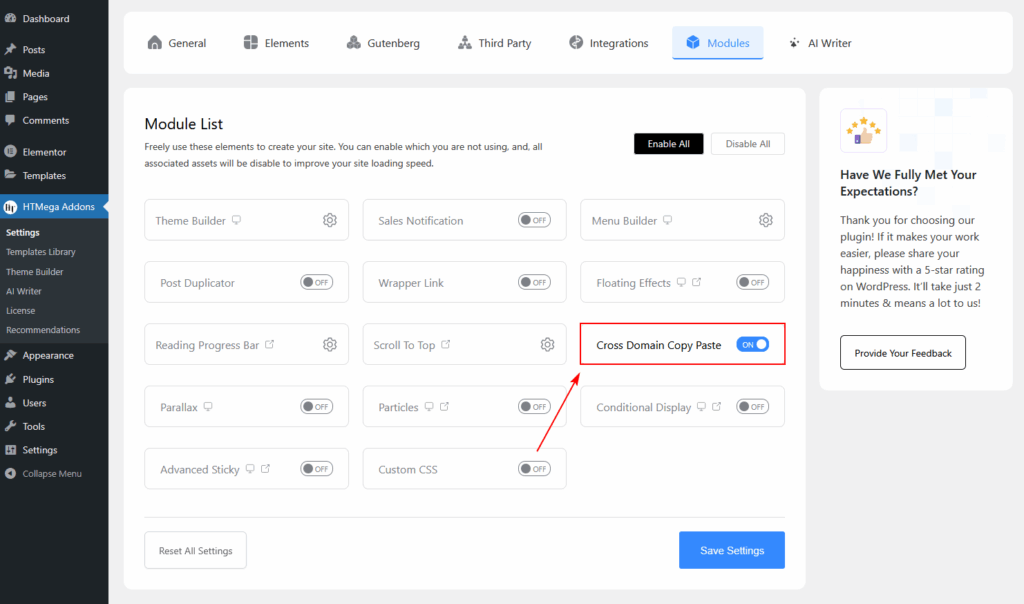
Both sites must have the module enabled for the transfer to work.
How to Use Cross Domain Copy Paste
Basic Workflow: Copy from Site A to Site B
- Copy from Source Site (Site A)
- Open Elementor Editor
- Right-click the element (section, column, or widget) you want to copy
- Click HT Copy in the context menu
- A success message confirms the copy
- Paste to Destination Site (Site B)
- Open the Elementor Editor on Site B
- Right-click at the insertion point
- Click HT Paste in the context menu
- Content appears instantly with all styling intact!


What Gets Transferred
Cross Domain Copy Paste transfers:
- Structure & Layout: Sections, columns, nested elements, and responsive settings
- Widgets & Content: All Elementor widgets (text, images, buttons, etc.), content, links, custom HTML
- Styling: Colors, backgrounds, typography, borders, shadows, padding, and custom CSS
- Advanced Settings: Motion effects, custom animations, visibility conditions, custom attributes
- Elementor Pro Features: Dynamic content, global widgets, theme builder elements (if available on both sites)
What Requires Manual Attention
- Images: URLs transfer, but images must exist in the destination media library
- Forms: Form IDs may need updating
- Dynamic Content: Database-specific content needs configuration
- Third-Party Widgets: Ensure the necessary plugins are installed on both sites
Best Practices
- Enable on Both Sites: Both the source and destination need the module
- Test Small First: Start with a simple widget before copying complex sections
- Check Plugin Availability: Ensure third-party widgets exist on both sites
- Use Descriptive Names: Name sections clearly for easy identification
- Verify Media: Make sure images exist in the destination media library
Troubleshooting
- HT Copy/Paste Not Appearing
- Ensure both sites have the module enabled and cache is cleared
- Broken Content
- Check for missing plugins, regenerate Elementor CSS, and verify custom fonts
- Images Not Displaying
- Upload images to the destination site’s media library or ensure filenames match
- Forms or Dynamic Content Not Working
- Reconfigure form settings and reconnect dynamic content fields
Frequently Asked Questions
- Do both sites need HT Mega?
- Yes, both sites need to have HT Mega with Cross Domain Copy Paste enabled.
- Can I copy from localhost to live site?
- Yes, works for dev-to-production workflows with out image.
- Does it work with Elementor Pro elements?
- Yes, but Elementor Pro must be active on both sites for Pro widgets to work.
Last updated on November 26, 2025
Was this article helpful?
Powered by Support Genix