
Overview
Post Duplicator is an HT Mega module that lets you clone any WordPress post, page, or custom post type with one click. It saves time by duplicating layouts, settings, and content—perfect for creating templates, testing variations, or backing up pages before editing.
Key Benefits
- Save Time: Clone full posts/pages instantly.
- Create Templates: Reuse master layouts for new content.
- A/B Testing: Make quick page variations for testing.
- Reusability: Repurpose successful designs easily.
- Safe Backup: Duplicate content before major edits.
- Faster Building: Speed up development across your site.
How to Enable
- Go to WordPress Dashboard → HT Mega → Modules.
- Find Post Duplicator and toggle it ON.
- Click Save Settings.
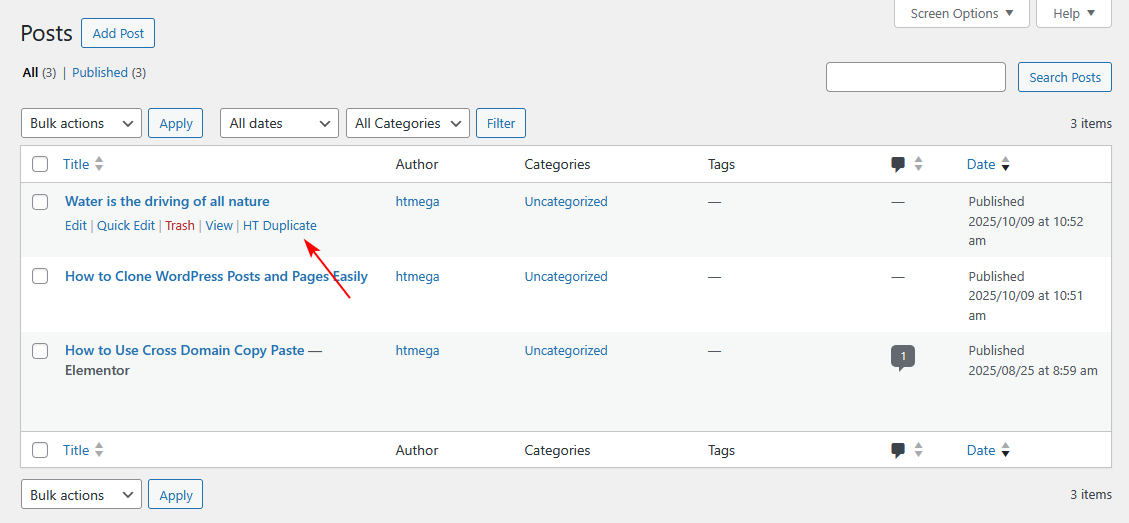
You’ll now see an “HT Duplicate” option in post/page lists.

How to Use
From Posts/Pages List
- Go to Posts → All Posts or Pages → All Pages.
- Hover over a post/page → click HT Duplicate.
- The duplicate appears as a Draft with a “(Copy)” suffix.
What Gets Duplicated
✅ Content (text, blocks, Elementor, etc.)
✅ Metadata (title, excerpt, featured image, custom fields)
✅ Categories, tags, and taxonomies
✅ Page settings (template, parent page, order)
✅ Custom post type data and ACF fields
❌ Not duplicated: Post ID, publish date, comments, revisions, or slug.
Supported Content Types
- Posts, Pages, and Media
- Custom Post Types (WooCommerce Products, Portfolio, Team, Testimonials, etc.)
- Page Builders: Elementor, Gutenberg, WPBakery, Beaver Builder, Divi, Classic Editor
Popular Use Cases
- Blog Templates: Duplicate a “master” post layout for new articles.
- Product Pages: Clone product layouts for similar items.
- A/B Testing: Create multiple versions of landing pages.
- Service Pages: Maintain consistent structure across pages.
- Staging Changes: Duplicate live content to test updates safely.
Best Practices
✅ Rename duplicates immediately.
✅ Review before publishing.
✅ Use as templates or backups.
✅ Update SEO (meta, slug) before publishing.
✅ Delete unused copies regularly.
❌ Don’t publish duplicates without editing.
❌ Don’t rely on duplicates for SEO content.
Troubleshooting
HT Duplicate Link Missing:
- Make sure module is enabled.
- Check user permissions and cache.
Elementor Layout Missing:
- Update and re-save original with Elementor.
- Regenerate CSS under Elementor Tools.
Custom Fields Not Copying:
- Ensure ACF fields are assigned to post type.
Featured Image or Taxonomies Missing:
- Verify they’re set on the original before duplication.
Performance
Lightweight and fast — duplicates create new entries without slowing your site. Works on any hosting setup and WordPress Multisite (per site).
FAQ
Is it free? Yes, available in both Free and Pro versions.
Does it work with custom post types? Yes.
Are duplicates published automatically? No, they’re drafts.
Can I duplicate multiple posts at once? Not yet (one at a time).
Does it copy comments? No.
Does it work with Elementor? Fully supported.
Does it affect SEO? No—drafts aren’t indexed.
Can I delete a duplicate? Yes, just move it to Trash.
Summary
Post Duplicator is a simple yet powerful tool for WordPress users who want to save time, maintain consistency, and work more efficiently. Whether building templates, testing designs, or safeguarding live pages, this module ensures quick, error-free duplication in seconds.