
Overview
Sales Notification is a social proof module in HT Mega that displays recent purchase popups on your website. These notifications show real or simulated customer activity to build trust, create urgency, and increase conversions by leveraging social proof.
Key Benefits
- Build Trust: Show visitors that others are buying.
- Create Urgency: Encourage faster decisions with FOMO.
- Boost Conversions: Increase sales through proven social proof tactics.
- Enhance Credibility: Highlight product popularity and active customers.
- Flexible Design: Customize timing, layout, and style.
- WooCommerce Ready: Automatically pull real purchase data.
How to Enable
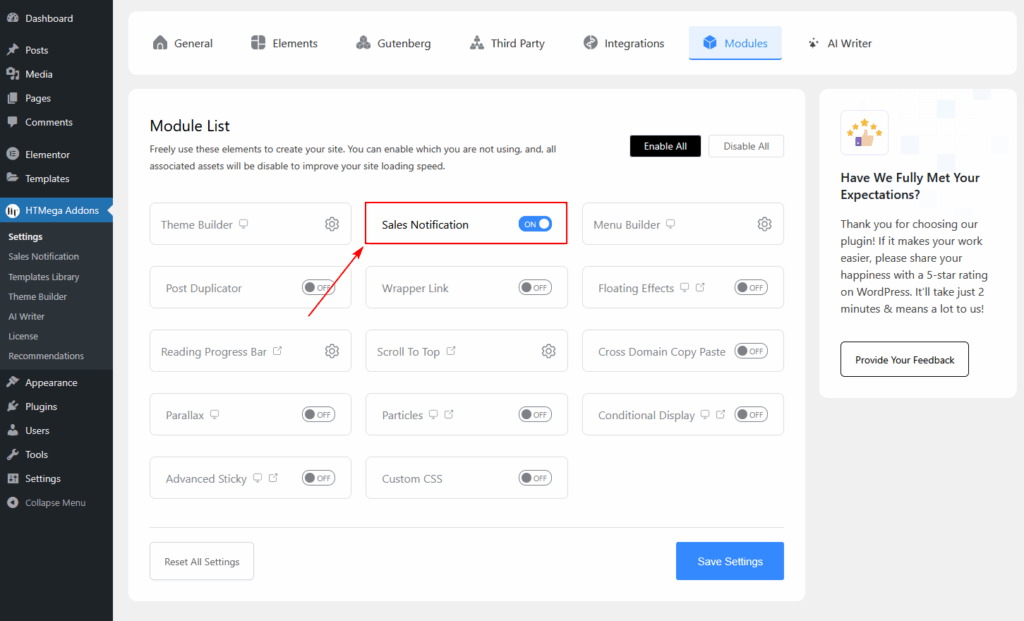
- Go to Dashboard → HT Mega → Modules.
- Find Sales Notification and toggle it ON.
- Click Save Settings.
- Click the Sales Notification under settings.
Configuration Overview
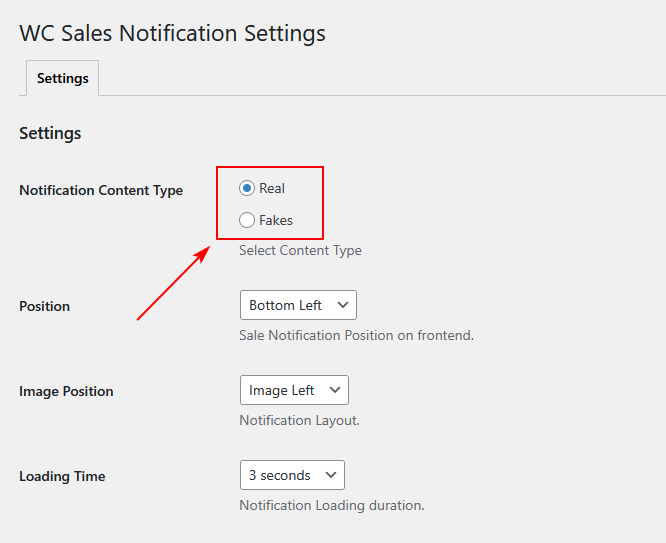
1. Notification Source
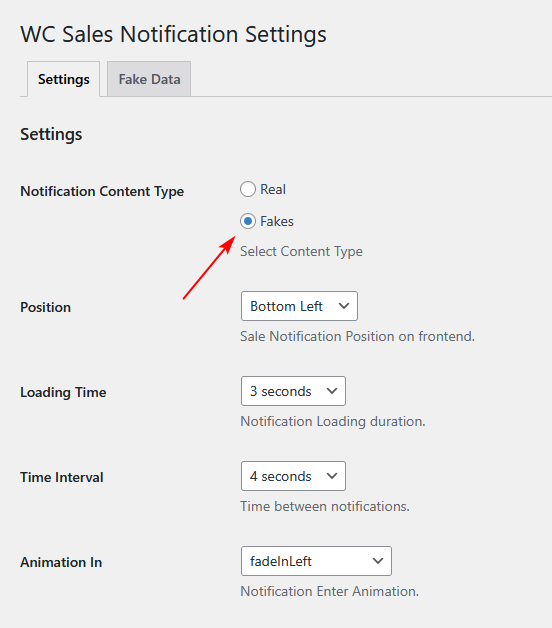
- Real Orders: Displays actual WooCommerce orders.
- Custom Content: Create manual notifications (for new or non-WooCommerce sites).
2. Display Settings
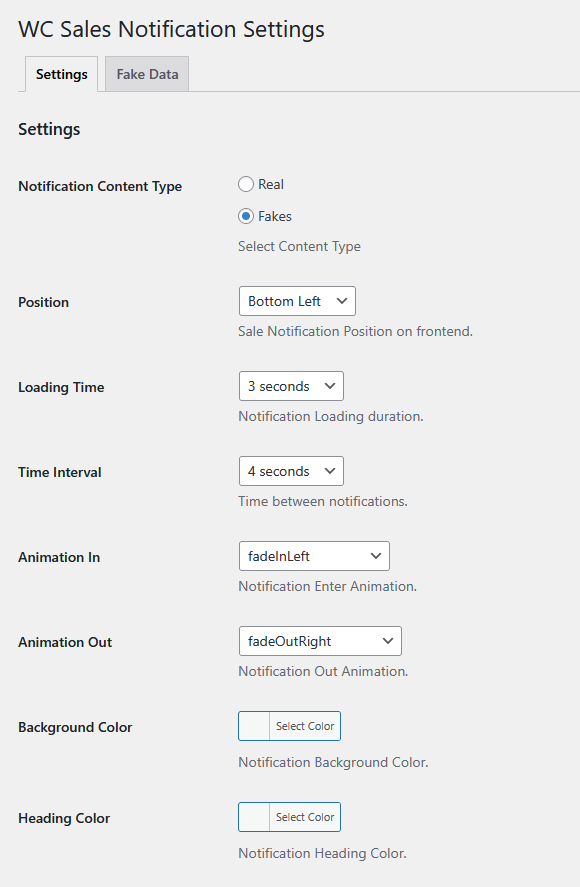
- Position: Bottom Left / Bottom Right / Top Left / Top Right.
- Timing:
- Initial Delay (e.g., 5s before first popup)
- Display Duration (how long it stays visible)
- Interval Between (time between notifications)
- Animation: Choose from fade, slide, bounce, zoom, or custom CSS effects.
3. Styling Options
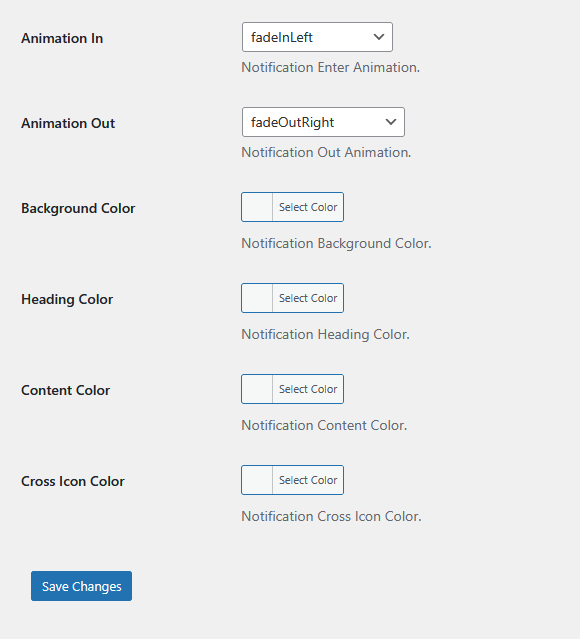
Customize background, text color.
Manual Notifications (Custom Content)
If your site doesn’t use WooCommerce:
- Go to HT Mega → Sales Notification.
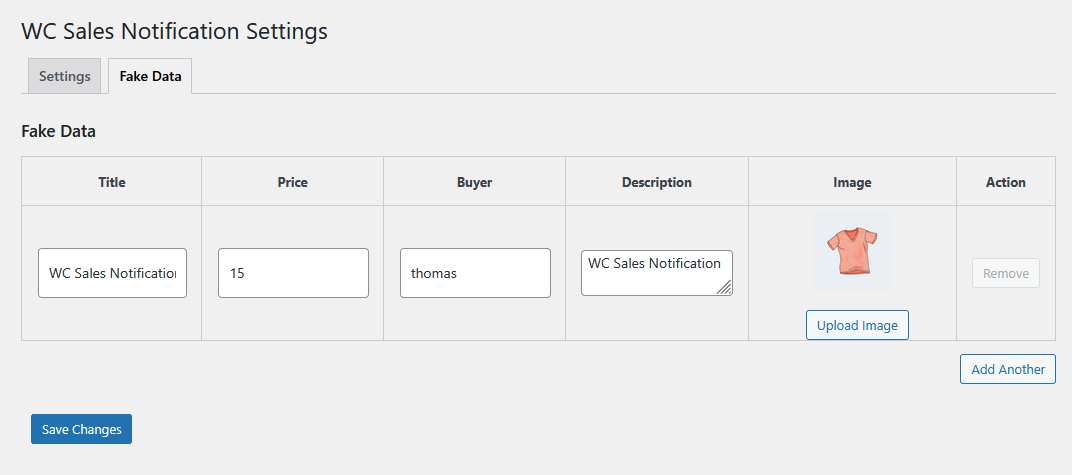
- Click Fakes Notification then Fake Data tab at top.
- Enter name, product, image, location, and time.
- Save.
Best Practices
✅ Do:
- Use real order data when possible.
- Space notifications 10–15 seconds apart.
- Keep popups short and unobtrusive.
- Match styling to your site’s brand.
- Test on both desktop and mobile.
❌ Don’t:
- Display too many notifications.
- Use fake names or misleading data.
- Show notifications during checkout.
- Reveal full customer information.
Optimization Tips
- Placement: Bottom corners are less intrusive.
- Timing: Start after 3–5 seconds; limit to 3–5 popups per session.
- Design: Use clear fonts, high-quality images, and readable contrast.
- Testing: Try different positions and timing for the best results.
Troubleshooting
Notifications Not Appearing:
Ensure the module is enabled → clear cache → check JS console → review display conditions.
Incorrect Product Info:
Check WooCommerce data and clear notification cache.
Overlapping Elements:
Change position, adjust z-index, or shorten display duration.
Privacy Concerns:
Show only first names or generic terms and reference your privacy policy.
FAQ
Is it free?
Yes, included in both Free and Pro versions.
Does it slow down my site?
No. It’s optimized and loads only when active.
Can I use it without WooCommerce?
Yes, via manual notifications.
Is it mobile-friendly?
Absolutely—fully responsive and auto-adjusts for screen size.
Summary
Sales Notification helps you boost conversions and credibility by showing real-time or simulated purchase popups. It’s fast, flexible, and fully customizable—perfect for creating urgency, trust, and social proof on any WordPress site.