
Turn your HT Mega-powered website into a multilingual experience with WPML’s default Translation Management system. This method lets you translate Elementor-based HT Mega content and saved templates easily using WPML’s Advanced Translation Editor. With deep integration between WPML and HT Mega, you get full translation coverage, efficient workflow, and SEO-ready multilingual content.
Why Use WPML to Translate HT Mega Pages & Templates?
- Translate Everything: Translate every widget and section created with HT Mega and Elementor—no content is left behind.
- Efficient Translation Workflow: Send pages or templates for translation using a visual dashboard and assign tasks quickly.
- Accurate, Structured Translations: Translate your content in context using WPML’s Advanced Translation Editor for better accuracy.
- Multilingual SEO Advantage: Improve your visibility across different regions by properly translating all front-end content.
Steps to Add WPML Translation
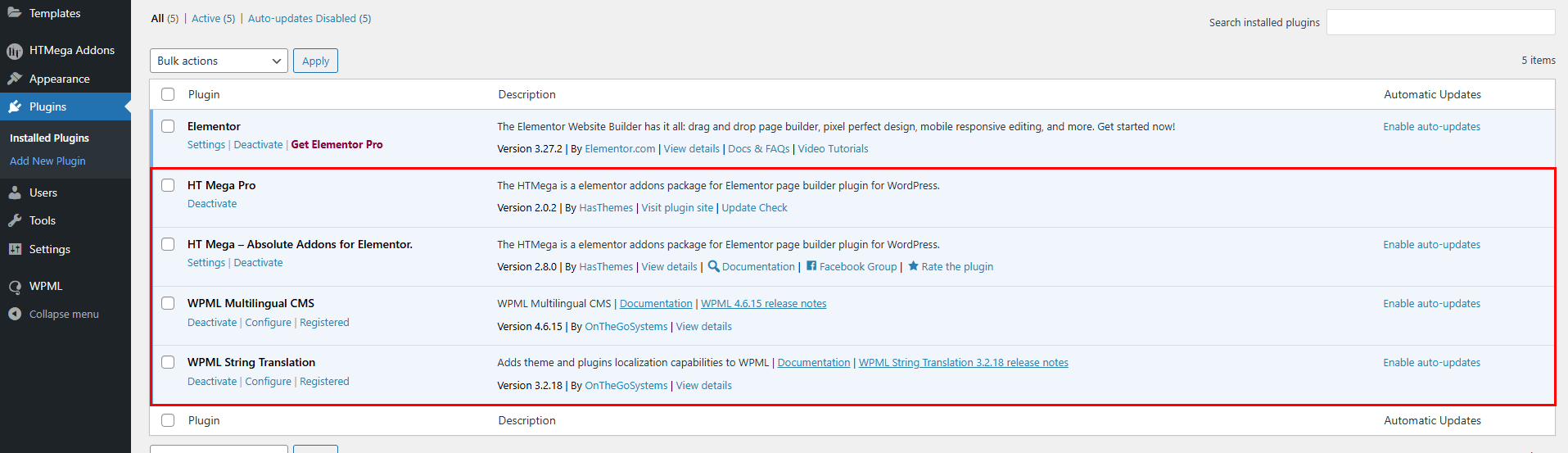
Make sure you have installed and activated WPML Multilingual CMS, WPML String Translation, and HT Mega (Free or Pro). For more details about the installation process check the documentation.
Step 1: Send HT Mega Content for Translation
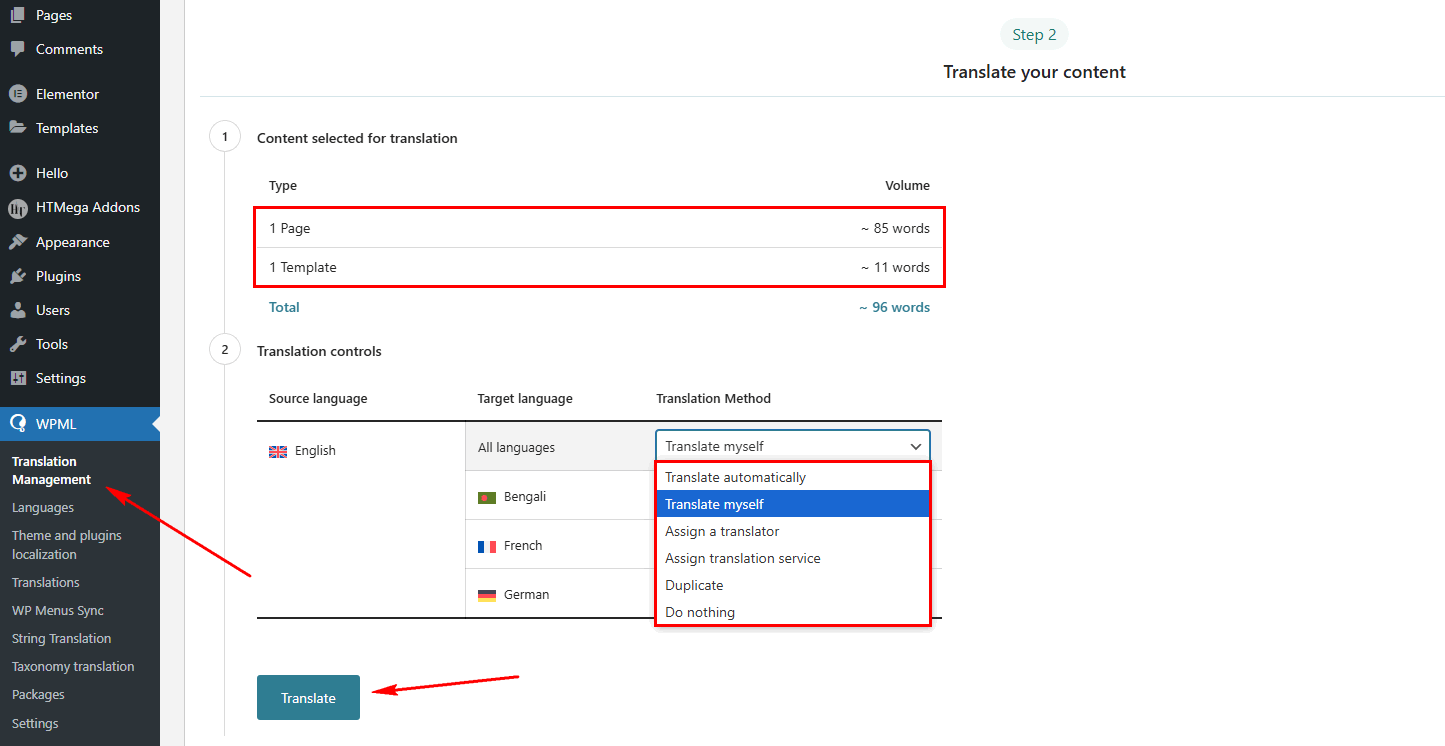
- Navigate to WPML > Translation Management in your WordPress dashboard
- Use the filter or search options to locate the content you want to translate. This can include:
- Pages
- Templates (e.g., Elementor Saved Templates using HT Mega widgets)
- Scroll down to Translation controls:
- Choose your Target Language(s) (e.g., Bengali, French, German).
- Under Translation Method, pick one of the following:
- Translate automatically – use WPML’s auto-translation engine.
- Translate myself – you will handle the translation manually.
- Assign a translator – assign it to a user/translator on your site.
- Assign translation service – use a connected third-party service.
- Duplicate – copy the original content to the secondary language.
- Do nothing – skip translation for this item.
- Click the Translate button to send the content to the WPML translation queue
Step 2: Translate HT Mega Pages & Templates in WPML Editor
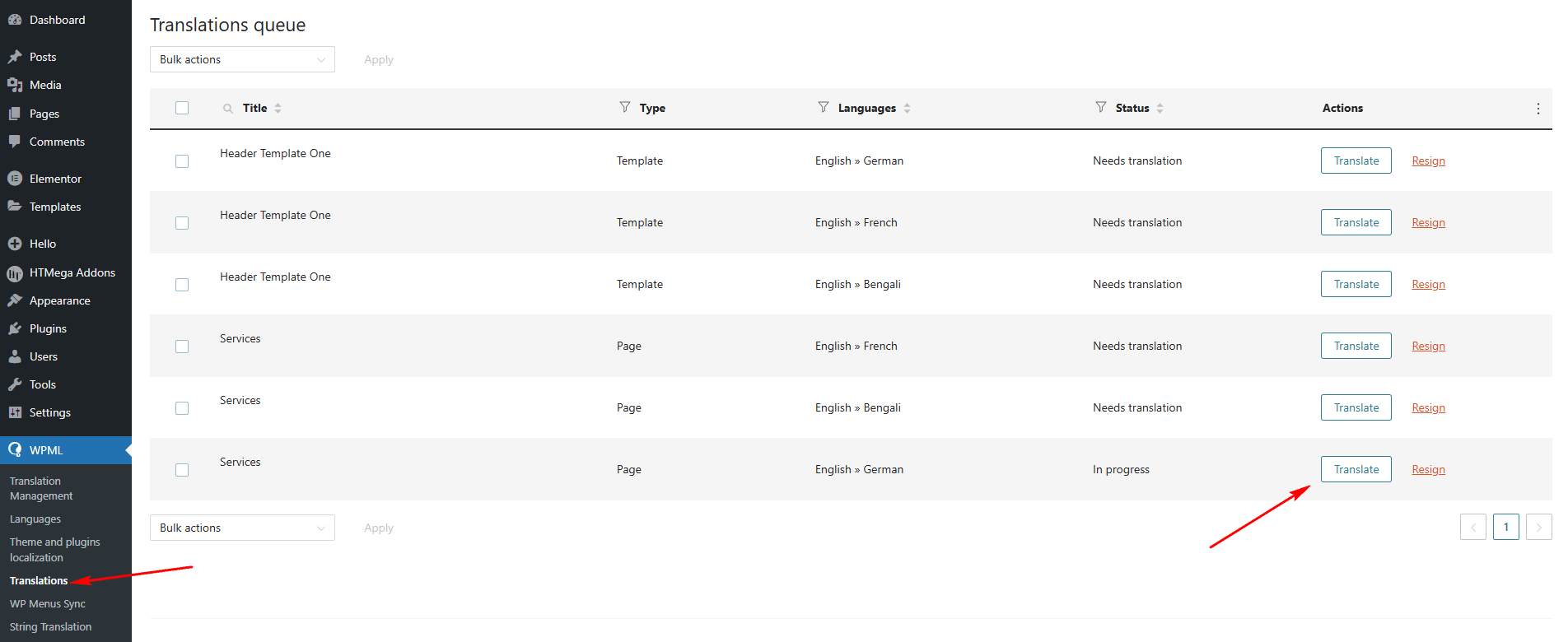
- Go to WPML > Translations.
- Click Translate on the assigned item.
Step 3: Translating Frontend Texts (Strings) from HT Mega
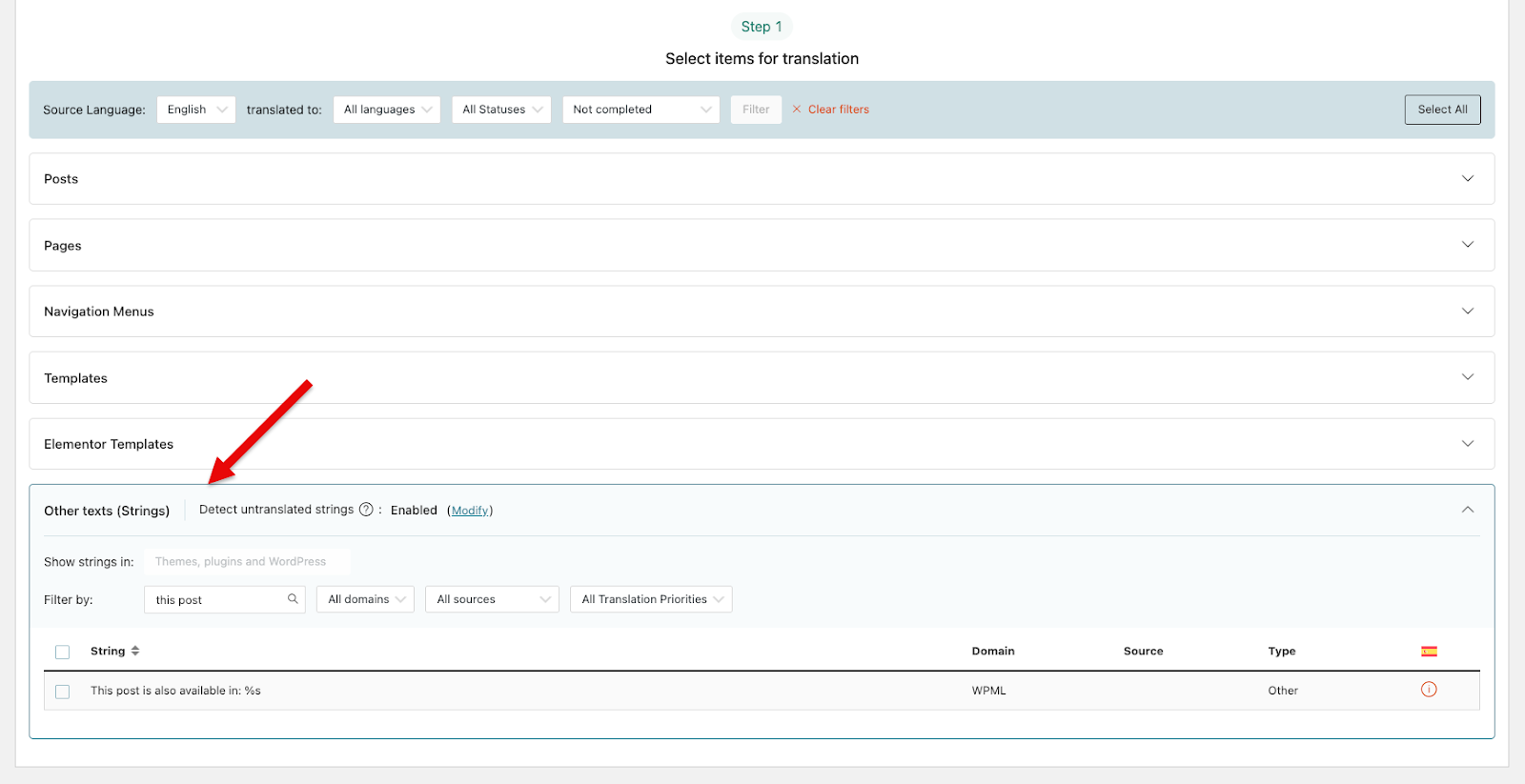
Some widgets may include texts that are not translated automatically with your pages and templates. For example, after translating your content, sorting labels might still appear untranslated on the frontend.
To translate these texts, go to WPML > Translation Management and scroll down to the Other texts (Strings) section. Use the available filters and search to find the untranslated texts, select them, and send them for translation.
That’s it! Always test your translations in preview mode before publishing. Thank you for choosing HT Mega to enhance your website design and user experience. If you need additional assistance, feel free to contact our support team. Our dedicated support team would be more than happy to assist you.