
HT Mega’s AI Builder lets you write or rewrite content, generate full sections, and generate entire pages inside Elementor using AI models like OpenAI, Claude, Google AI (Gemini), DeepSeek, Kimi (Moonshot AI), or Z.ai (GLM). It’s 100% free to use with your own API key—no extra subscription required.
Prerequisites
- Elementor installed and activated
- HT Mega Addons installed and activated
- An API key from one of the following:
- OpenAI
- Claude (Anthropic)
- Google AI (Gemini)
- DeepSeek
- Kimi (Moonshot AI)
- Z.ai (GLM)
Enable and Configure AI Builder
- Go to HTMega Addons → AI Builder from your WordPress dashboard.
- Make sure the Enable AI Builder switch is turned ON.
- Select your preferred AI Engine (OpenAI, Claude, Google AI, DeepSeek, Kimi, or Z.ai).
- Paste your API Key (get one from the respective platform).
- Choose your AI Model (e.g., GPT-5.6 Luna for OpenAI).
- Click Save Settings.
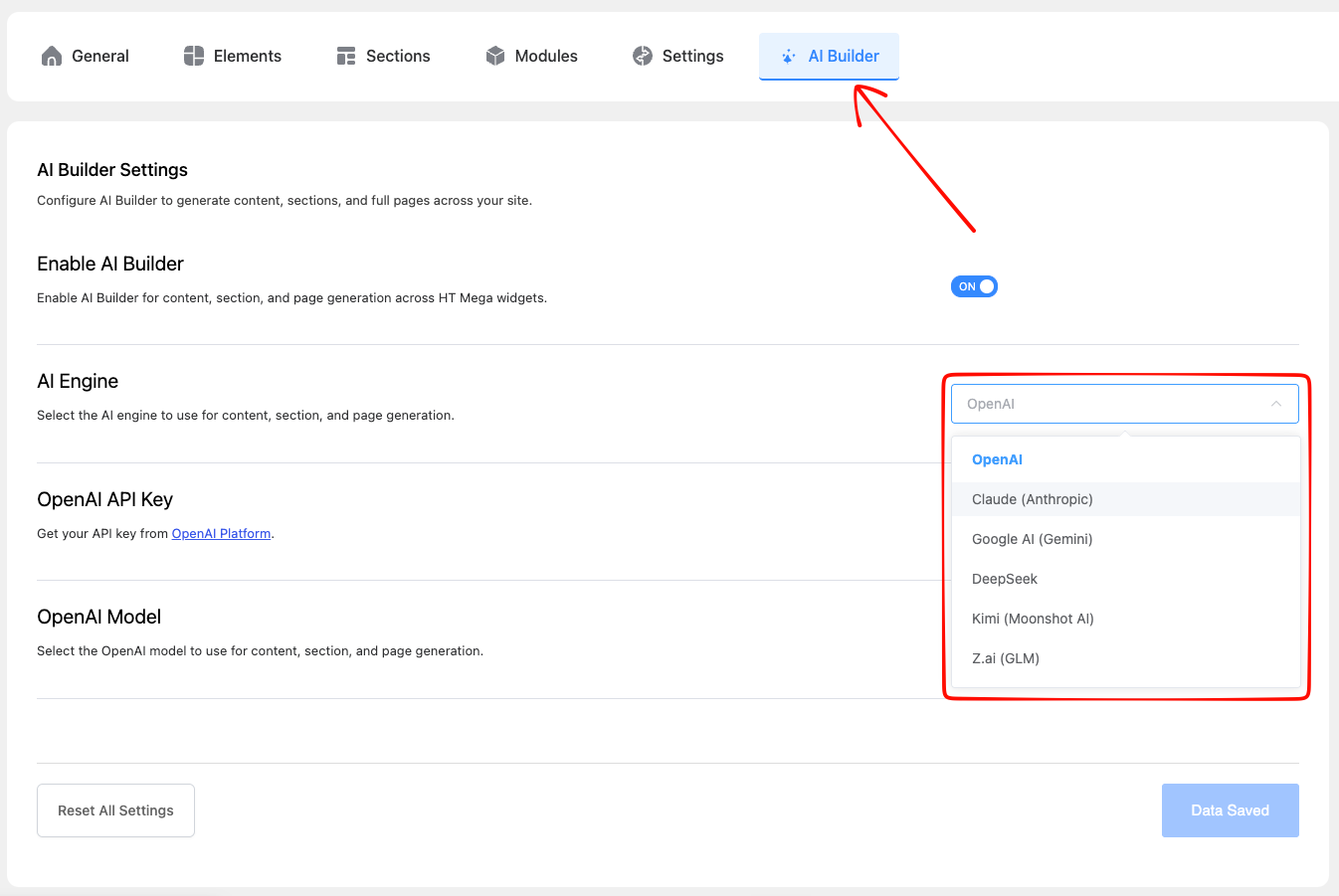
💡 Tip: Google AI (Gemini) offers a free API key via Google AI Studio, allowing you to use AI Builder entirely free—no AI subscription required.
Rewrite Existing Content (Write with AI)
- Open any page with Elementor and edit a widget like Heading, Text Editor, or Info Box.
- Look for the “✨ Write with AI” icon next to the content fields (Title, Description, etc.).
- Click the icon to open the AI modal.
- Enter your prompt (e.g., “Create a catchy headline for a fitness program”).
- Click Generate to see the AI-generated result.
- Click Use This Content to apply it instantly.
Generate a Section with AI Builder
- Open any page with Elementor and hover over an empty container/section.
- Click the “✨ Build with AI” sparkle button next to Elementor’s own + and folder icons.
- Keep the mode set to Add one section.
- Describe the section you want (e.g., “Pricing section for a SaaS product, dark and minimal”).
- Click Generate. AI Builder picks a matching widget, layout, and design style, then writes the copy.
- Review the real rendered preview, then click Insert.
- The section is added as a draft—click Elementor’s Update to publish it.
Generate a Full Page with AI Builder
- Click the same “✨ Build with AI” button on an empty container.
- Switch the mode to Build a full page.
- Optionally enter your page or business name for consistent branding across every section.
- Describe the page you want (e.g., “Landing page for a law firm, with pricing, testimonials, and a contact form”).
- Click Generate. AI Builder picks an ordered set of sections and generates each one, keeping one design style consistent across the whole page.
- Review the preview of each section, then click Insert All.
- The full page is added as drafts—nothing publishes until you click Elementor’s Update.
Troubleshooting & Notes
- If the AI buttons don’t appear, make sure AI Builder is enabled and configured.
- All content, sections, and pages are generated via your chosen API engine. HT Mega does not store or charge for AI usage.
- Generated sections and pages always insert as drafts—nothing publishes automatically.
- Section and page generation currently supports the HT Mega 2026 collection: Hero, About, Services, Pricing, Testimonials, Stats, CTA, Team, FAQ, Blog, and Contact.
Last updated on August 16, 2026
Was this article helpful?
Powered by Support Genix